The workplane is the flat surface you work on: where new shapes land, what dragged objects slide across, and where the grid is drawn. It's the build plate to start with. Set it on any face to build on that face instead, even a wall or a slope.
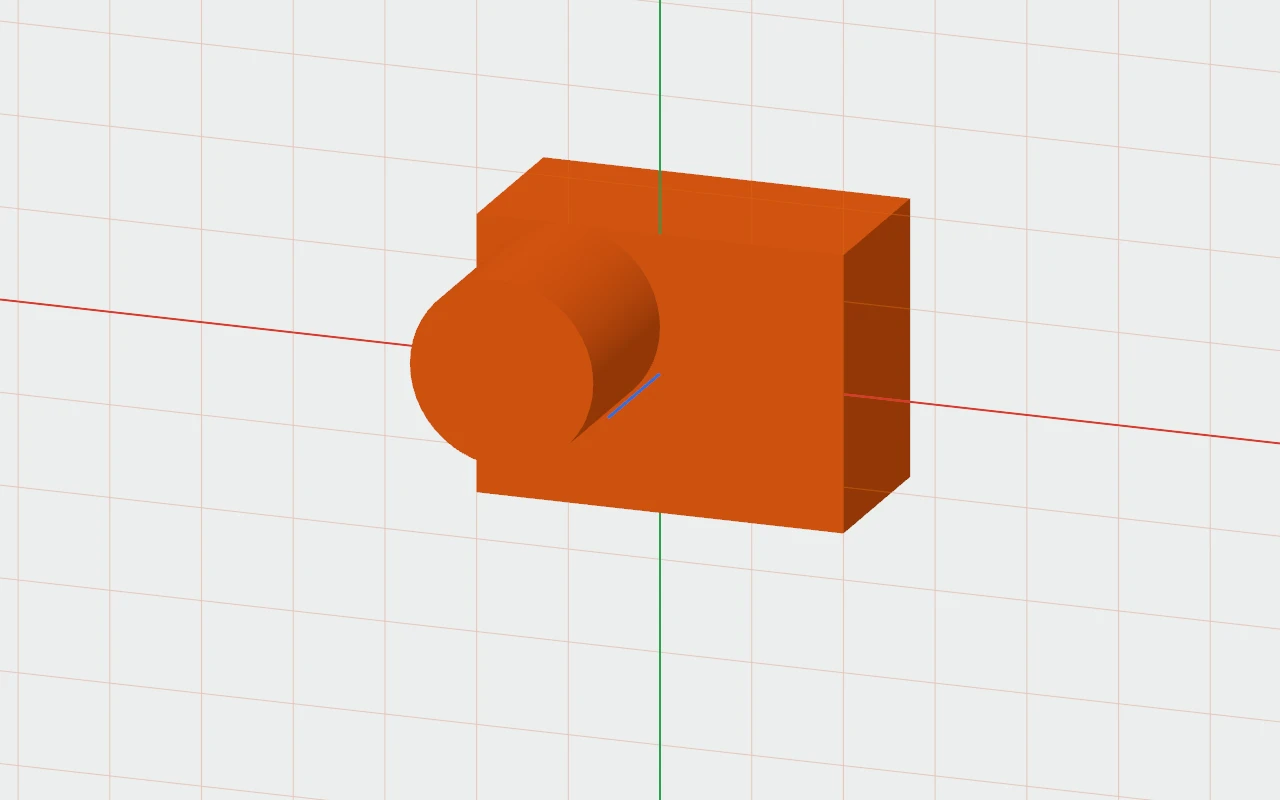
Setting a workplane
- Right-click a face and choose Set Workplane Here.
- The grid moves onto that face, drawn in orange so you can tell it isn't the plate, and the Z axis stands straight out of it.
On a wall, the workplane is turned so that "up" stays as near straight up as the wall allows, so shapes placed there stand upright.
What follows it
- New shapes land on the workplane, or on a face under the pointer: see Placing Shapes.
- Dragging an object slides it across the workplane.
- The Move tool's arrows, aligning, Drop and lining up use its directions.
- A sketch started on empty space is drawn on it.
Back to the plate
Choose View › Reset Workplane, or right-click › Reset Workplane.
The workplane remembers only where it is, not the face it came from: moving or deleting that object doesn't move it. It isn't saved with the design, and setting it isn't an undo step.