Every new design starts with the start screen in front of it, so you can begin from an empty build plate, from one of the templates, or from a design you've worked on before.
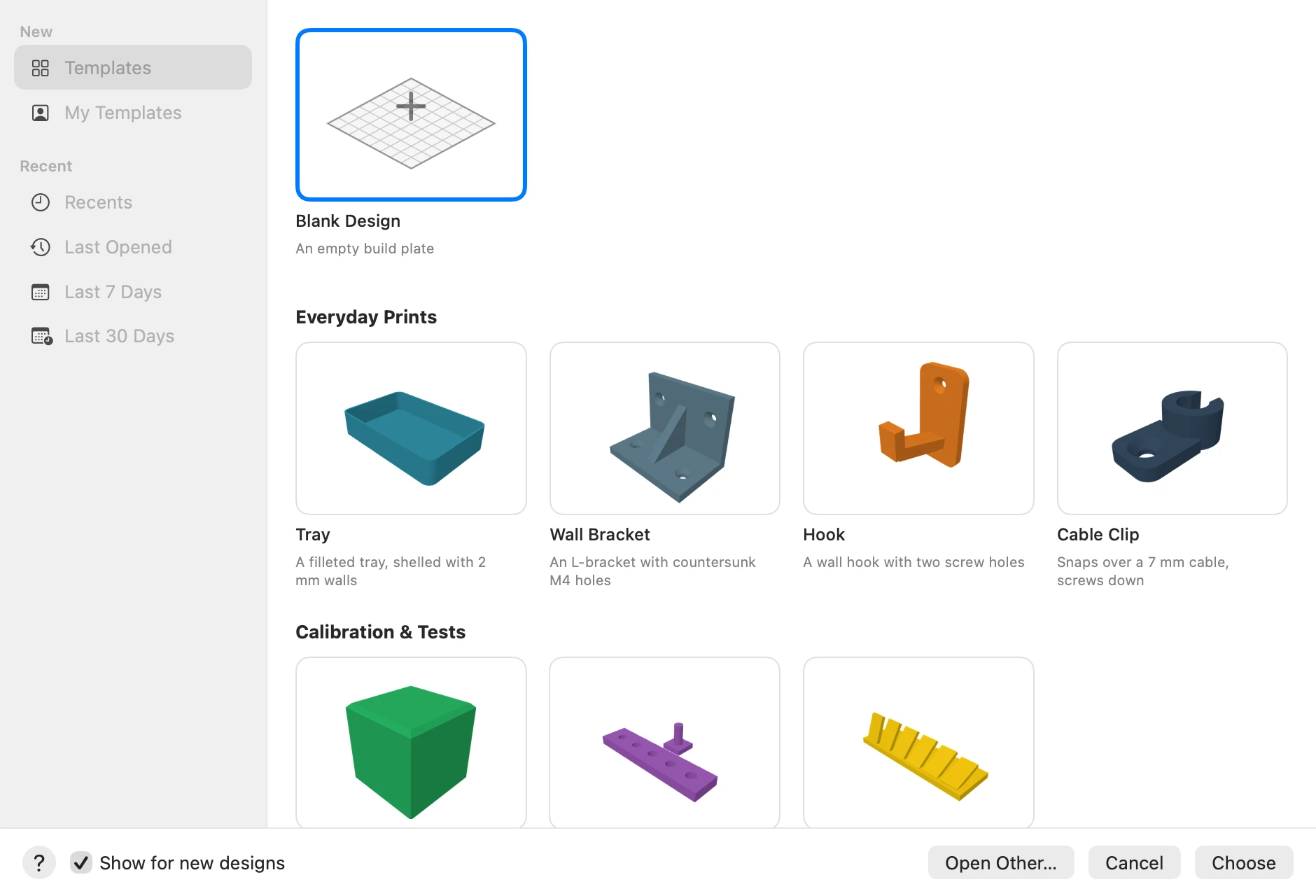
Starting a design
- Choose File › New (⌘N). When Caliper3D opens, its first design starts the same way.
- Click Blank Design for an empty build plate, or one of the templates.
- Click Choose. Double-clicking a tile chooses it straight away.
Templates
Ready-made designs to print as they are or to change, grouped as Everyday Prints, Calibration & Tests, Mechanical, Layouts and a Showcase. Starting from one gives you a new design of your own: the template itself never changes.
My Templates
Keep any design as a template of your own:
- Open the design, then choose File › Save as Template… from the menu bar.
- Give it a name. It's kept, with its picture, under My Templates in the sidebar.
Right-click one of yours to rename it or remove it.
Recent designs
The sidebar's Recent section lists the designs you've opened: all of them, the one you opened last, or those from the last 7 or 30 days, each with when it was last opened. Choose one and click Open, and it opens in its own window.
Open Other… shows the usual Open panel, for a design that isn't listed.
Turning it off
Untick Show for new designs, at the bottom of the start screen or in Settings, and new designs start blank. File › New from Template… (⇧⌘N) still shows it whenever you want it.