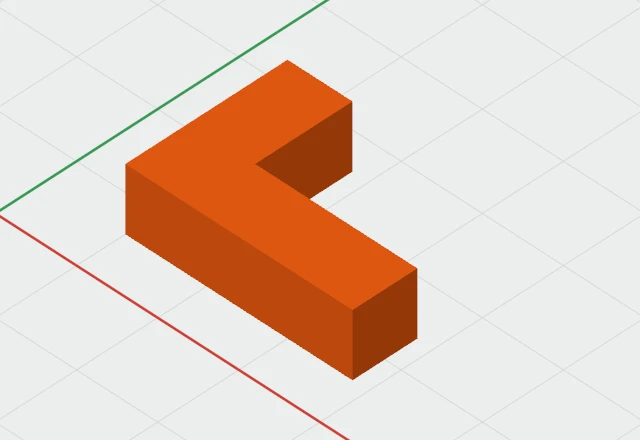
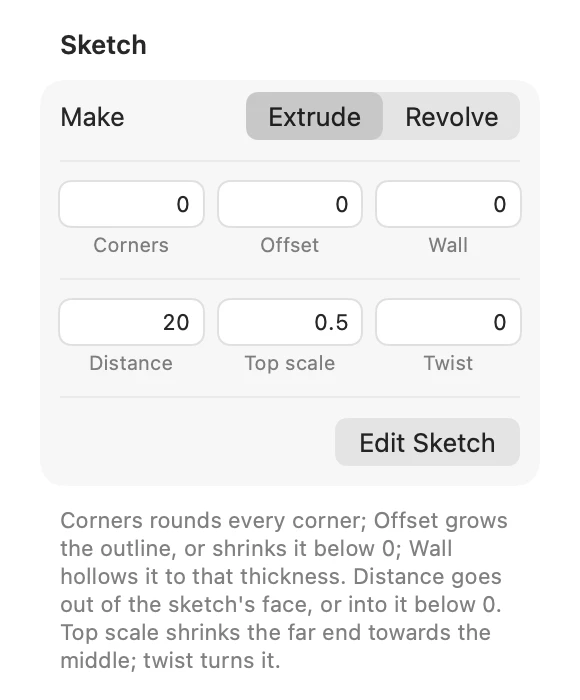
Three settings change a sketch's closed shapes before they're made solid: round every corner, grow or shrink the outline, or hollow it to a wall. They're numbers in the inspector, so you can change them without redrawing anything.
Setting them
Select the sketch. In the inspector's Sketch section:
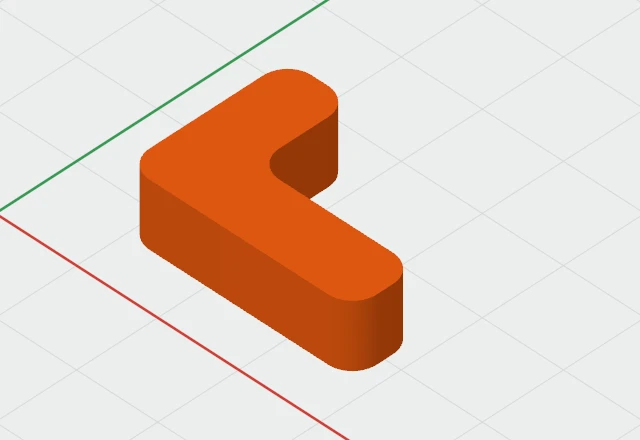
- Corners rounds every corner, inside and out, to that radius.
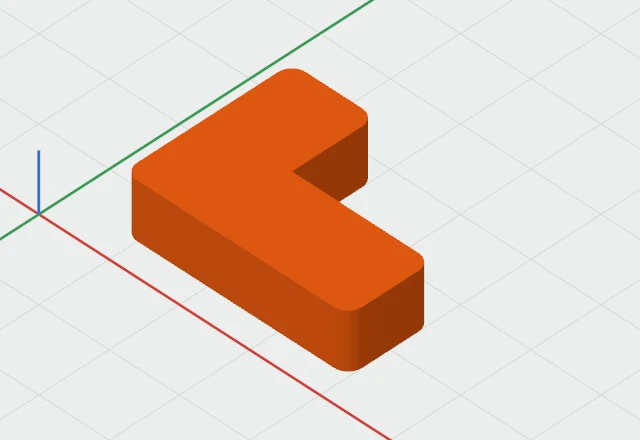
- Offset moves the whole outline out by that much, or in when it's below 0.
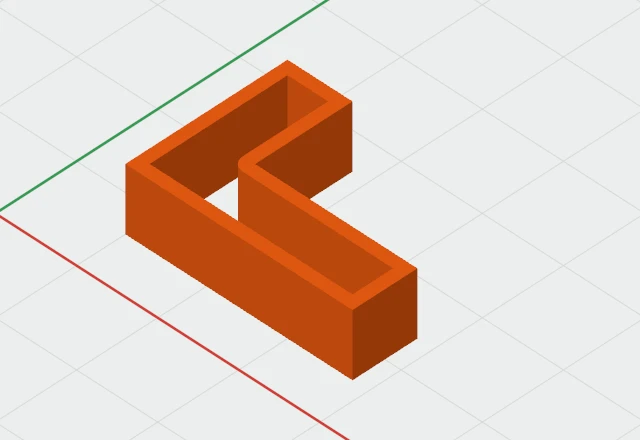
- Wall hollows each shape to a wall that thick inside its outline, for a tube or a frame. 0 leaves it solid.
They work on extruded and revolved sketches alike, in that order: the corners are rounded, then the outline is offset, then it's hollowed. Each change is one undo step.
Limits
- A corner radius can be at most half the sketch's narrowest width. The inspector says so, with the most it can be.
- An offset can't shrink the sketch to nothing. The inspector says so, with how wide the sketch is.
Resizing
Resizing a sketch with its handles keeps its corners, offset and wall the same, so a rounded rectangle made longer keeps its 3 mm corners. The Scale tool scales them with everything else.