Group objects to move, resize, turn and colour them as one. A group's holes cut its solids, and you can step inside a group whenever you want to change what's in it.
Grouping
- Select two or more objects and choose Object › Group (⌘G), or Modify ▾ › Group. The group is named Group 1, Group 2 and so on, and turns about its middle.
- Grouping only holes makes one bigger hole.
- Object › Ungroup (⇧⌘G) turns a group back into separate objects, each where it was and looking as it did: pieces with no colour of their own keep the group's, and a hole's pieces stay holes. A shell set on the group is taken off, since it can't be shared among the pieces, and a note says so; ⌘Z puts it back.
A hole grouped with solids cuts them: that's how to make a hole in something.
Editing inside
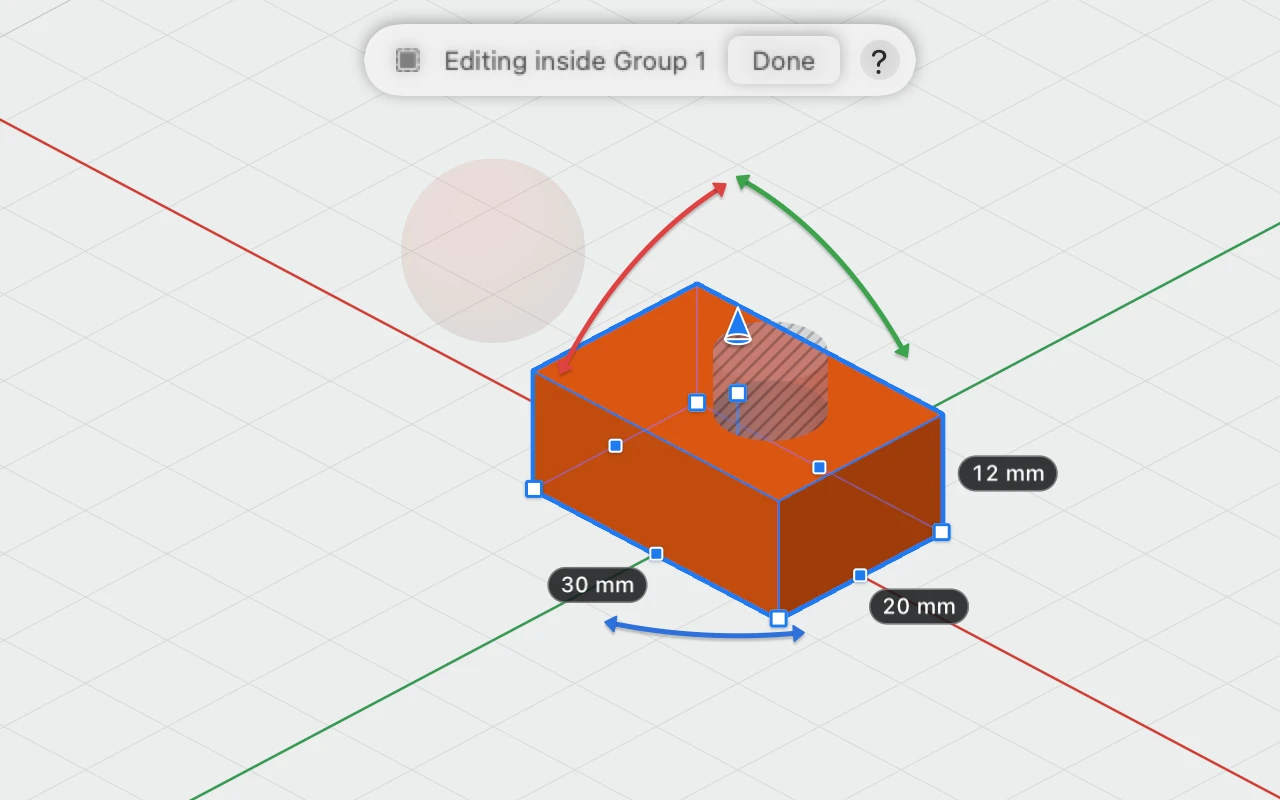
- Double-click the group, or select it and choose Object › Edit Inside.
- Select, move, resize, colour and delete what's in it, as if it were the whole design. The rest of the design is faded and can't be clicked. Holes are drawn as striped ghosts you can grab.
- Click Done, press Esc or click empty space to step back out. The group is selected again.
- A group inside a group: double-click it to go in another level. The bar shows the way in, such as "Editing inside Group 1 › Group 2".
- Combined objects and patterns are edited inside in the same way.
- Anything you add while inside goes into the group.