Shell hollows a solid out to a wall of the thickness you choose, with any of its faces left open: a box becomes a tray, a cylinder a cup. It's a setting of the object, so it stays hollow when you resize it.
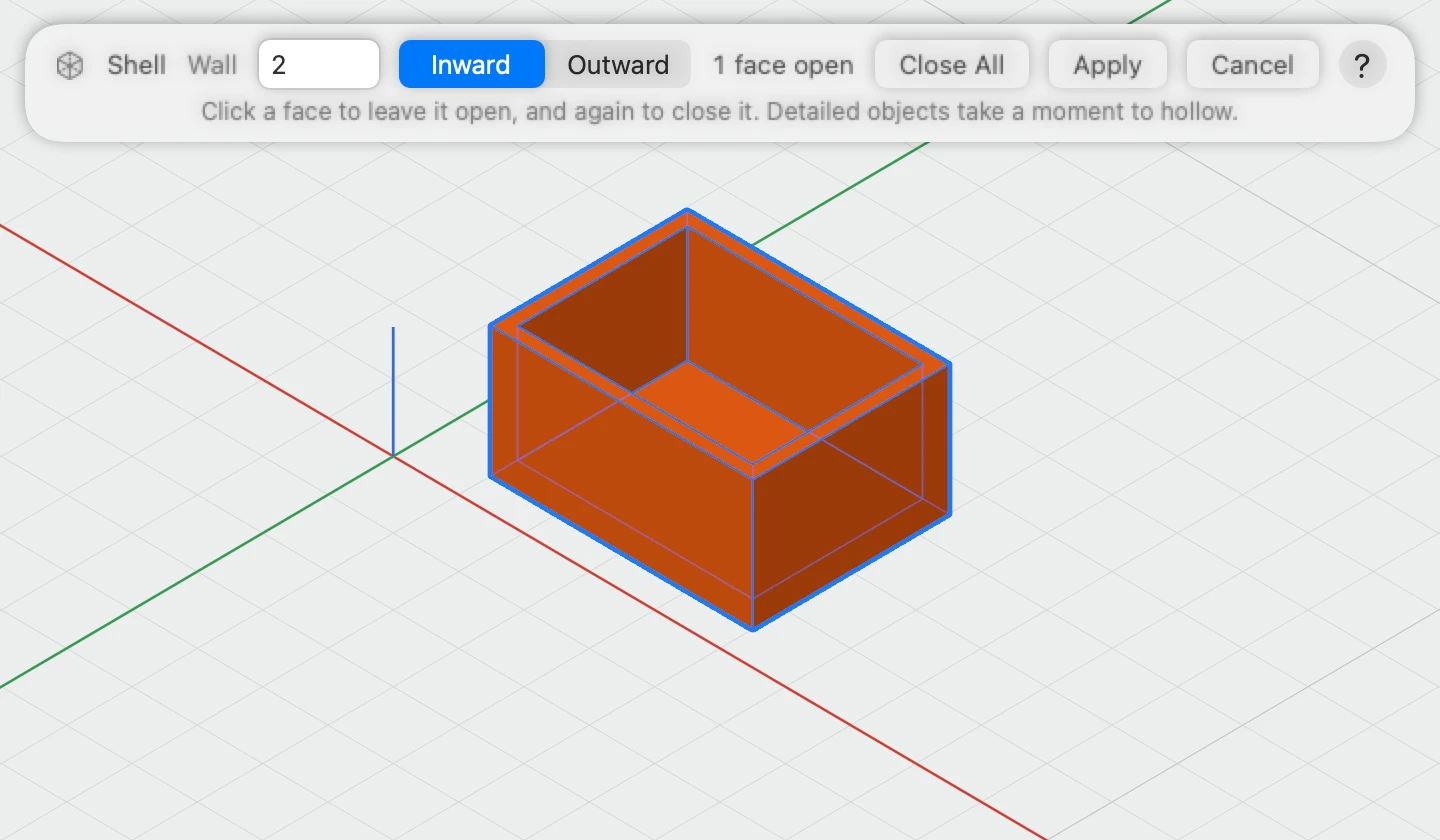
Hollowing an object
- Select one solid.
- Choose Modify ▾ › Shell… in the toolbar, or Object › Shell…, or right-click it.
- Type the Wall thickness, 2 mm to start with.
- Click each face to leave open, such as the top. Click it again to close it, or Close All. The bar counts the open faces.
- Click Apply.
The object shows hollowed as you go, and Cancel (Esc) leaves it as it was. Detailed objects, such as gears, take a moment to hollow.
Inward or Outward
- Inward keeps the outside as you designed it, and the wall grows into it. Use it when the outside size matters, such as a box that fits a shelf.
- Outward keeps the inside, and the wall grows round it. Use it when the inside size matters, such as a case for something you've measured.
A wall too thick for the object is refused, with how thin it is at its thinnest. Only solids can be shelled, not holes.
Changing it later
Select the object and its inspector has a Shell section: the Wall thickness, Inward or Outward, how many faces are open, and Remove Shell to make it solid again. To open or close faces, choose Shell… again: the bar starts from the shell it has, and its Change button changes it.