Claude, Anthropic's AI, can design in Caliper3D for you. Describe a part in words and Claude places the shapes, cuts the holes, rounds the edges and checks its work, in your front window while you watch. Every step is one undo step, so you can take back anything you don't want.
It works with Claude Code, which connects to the app through MCP, the Model Context Protocol, on this Mac only.
Switching it on
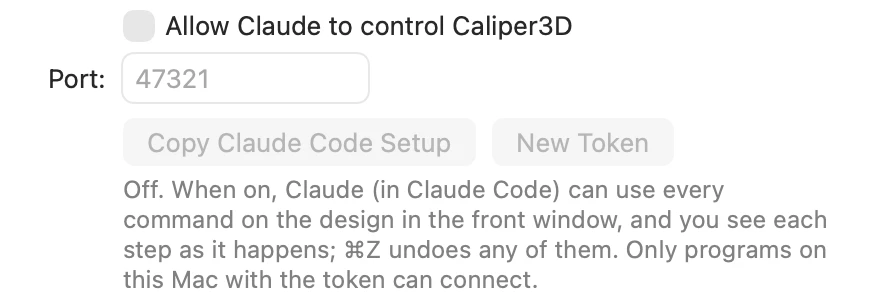
- Choose Caliper3D › Settings… (⌘,) and tick Allow Claude to control Caliper3D.
- Click Copy Claude Code Setup. It copies the command that adds Caliper3D to Claude Code, with your token in it.
- Paste it into Terminal and run it. In Claude Code,
/mcplists caliper3d as connected while Caliper3D is running with access switched on. - Ask Claude to design something, such as "In Caliper3D, make a 40 × 20 × 10 mm block with an M5 threaded hole through it and 2 mm fillets on its top edges, then render it to check."
While Claude works
- Claude can do what you can: add shapes and parts, sketch, combine, fillet, shell, pattern, loft, colour, group, measure and export. It goes through the same commands as the menus, inspector and tools.
- You see each step. A badge at the top of the window, "Claude: …", says what it last did. What it made or changed is selected, and the view zooms out if it's off screen.
- Each step is one undo step, so ⌘Z takes back anything you don't like.
- Claude checks its work with pictures of the design from any of the standard views.
- Saving: Claude can save a design that's been saved before. Save a new design yourself once (⌘S) to choose where it goes.
Keeping it safe
- It's off until you switch it on, and switching it off stops the app listening altogether.
- Only this Mac can connect, and only with your token, which is kept in your Keychain.
- New Token makes a new one and stops setups made with the old one. Copy the setup again afterwards.
If it doesn't connect
- Nothing happens: Caliper3D has to be running, with access switched on.
- "Couldn't listen on port …": another program is using the port. Choose another in Settings, then copy the setup again.
- Unauthorized: the token in Claude's setup is out of date. Copy the setup again.
- "Couldn't read Claude's token from the Keychain": the Keychain asked whether Caliper3D could use the token and was told no, or is locked. Your token is kept as it was. Click Try Again and choose Always Allow, and Claude's setups work again unchanged.