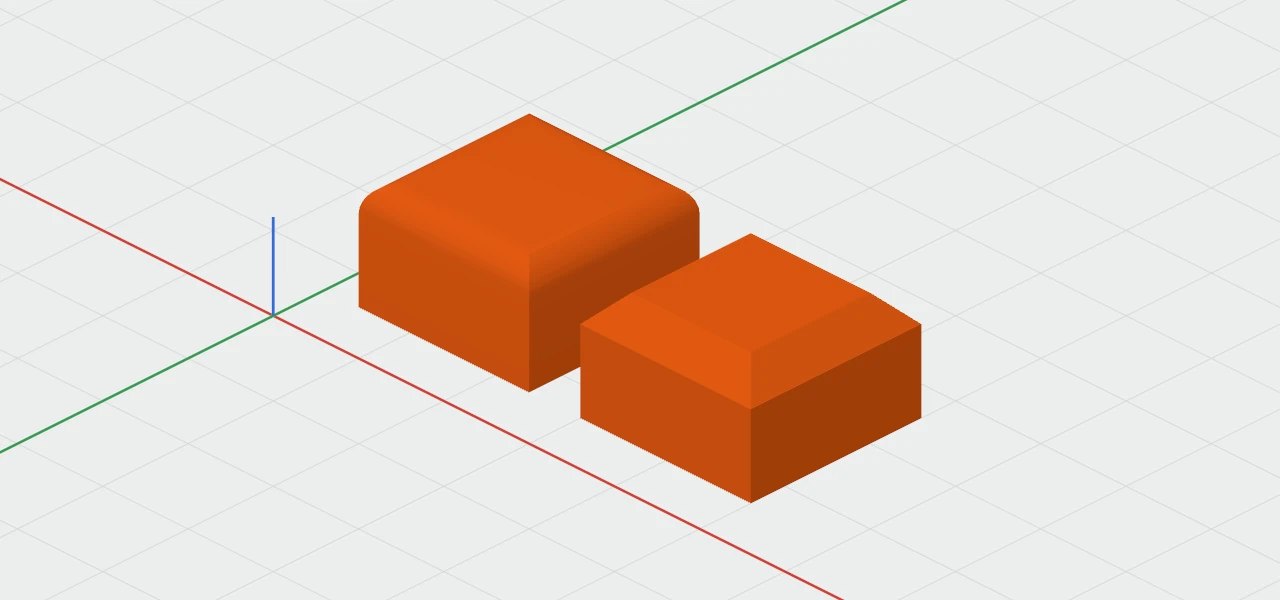
A fillet rounds an edge off and a chamfer cuts it at an angle. Both make parts nicer to hold and easier to print, and they stay settings of the shape: resize it and the edges stay rounded.
Rounding edges
- Choose Modify ▾ › Fillet… or Chamfer… in the toolbar, or the same in the Object menu, or right-click the edge. In the 3D view, F and C do the same.
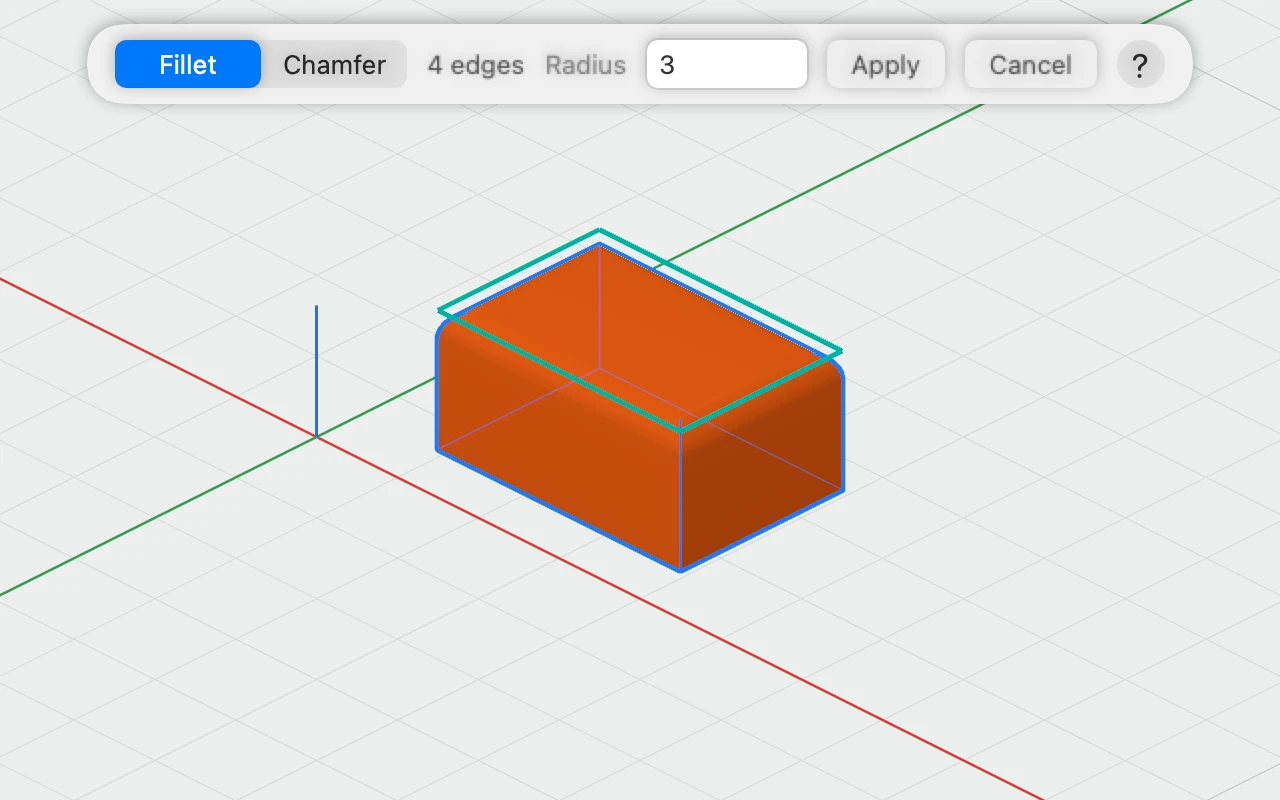
- Click an edge to pick it, ⇧-click to pick more or to drop one, or click a face to pick all its edges. Picked edges show in teal, and the bar says how many.
- Type the Radius for a fillet or the Size for a chamfer. The shape shows finished as you type.
- Click Apply, or press Return. It's one undo step, "Fillet" or "Chamfer".
The bar's Fillet and Chamfer switch between the two at any point. The size starts at the one you used last, 1 mm at first. Cancel (Esc) leaves the edges as they were.
Which edges
- Boxes have 12 edges, each picked on its own. Where all three edges at a corner have the same fillet, the corner is rounded like a ball.
- Cylinders and cones have a rim at each end. A cone that comes to a point has none there.
- Spheres have no edges.
- Sketches round their corners in the sketch itself: see Corners, Offset and Wall.
- Bolts, nuts and other parts have their own chamfers.
A shape inside a group can be picked as it is. In a pattern, pick the original's edges, not a copy's: every copy follows.
Changing or removing them
Select the shape and its inspector's Edges section lists its fillets and chamfers, such as "Fillet 3 mm, 4 edges". Remove makes those edges sharp again. To change a size, pick the same edges again and apply the new one.
A fillet or chamfer too big for the faces it joins is refused. If the shape is made smaller later, they're drawn as large as fits, and the inspector says so.