Bring in models made elsewhere, as STL files, to print as they are or to build on: resize them, cut holes in them, or combine them with your own shapes.
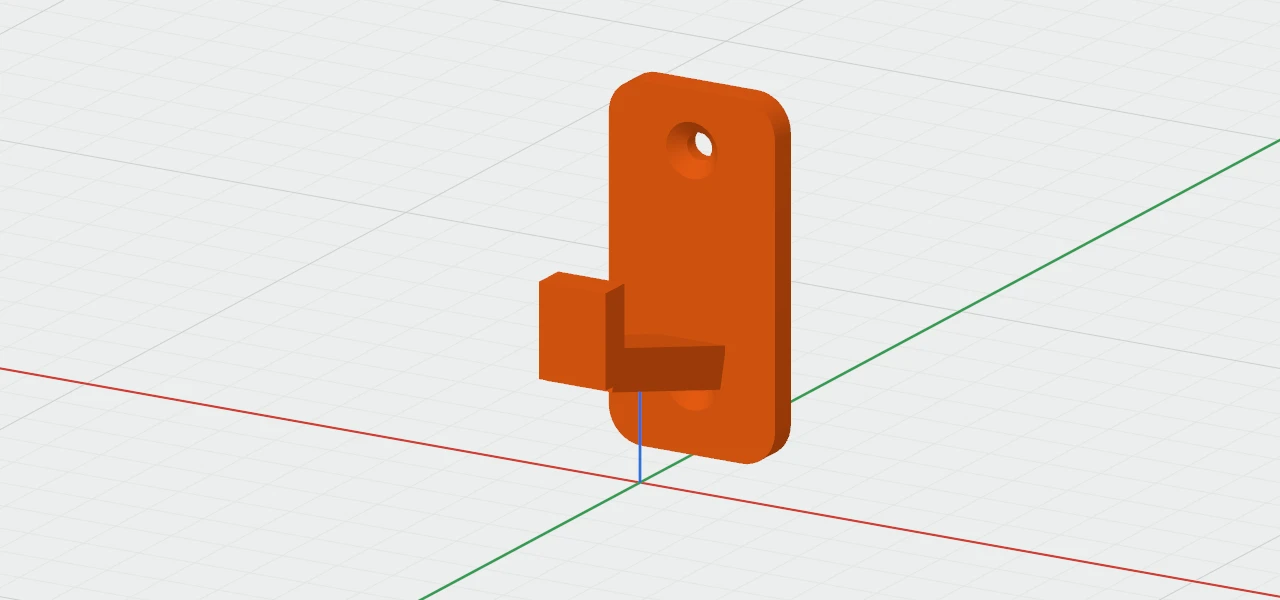
Bringing a model in
- File › Import… (⇧⌘I): choose one or more STL files. Each goes where there's room on the plate.
- Drag STL files from the Finder onto the 3D view: the first lands where you drop it, the rest beside it.
- Open an STL with File › Open, or double-click one in the Finder: it becomes a new design of its own. Saving it asks where, so the STL is never written over.
A note at the top of the view says what came in, and anything that was fixed.
Repairs
Downloaded STL files are often a little broken. Caliper3D joins corners that should meet, removes broken triangles, turns the rest to face outwards, and says what it fixed.
A model that still isn't watertight is kept, to move, resize and export, but it can't be cut or combined, and the inspector warns you.
Units
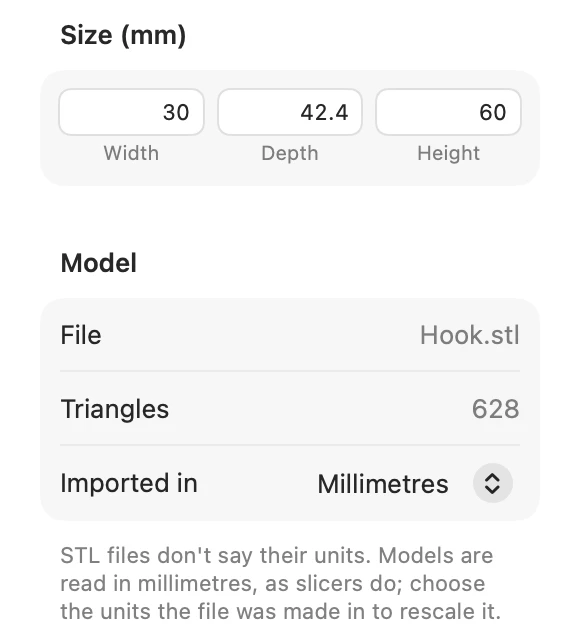
STL files don't say what units they're in, so models are read in millimetres, as slicers read them. If one comes in tiny or huge, choose the units it was made in under Imported in: Millimetres, Centimetres or Inches. The inspector suggests it when a model is under 2 mm or over 2 m across.
Working with it
- Size fields and handles stretch it on each axis, like a box; the Scale tool scales it evenly.
- Group it with holes, or use it in Combine, to cut it, if it's watertight.
- In the object list it has its own icon, .
- It's saved inside the design, so the STL file isn't needed afterwards, and copying it to another design takes it along.