The Scale tool resizes the selection: drag its squares, or type a factor, such as 1.5 or 50%.
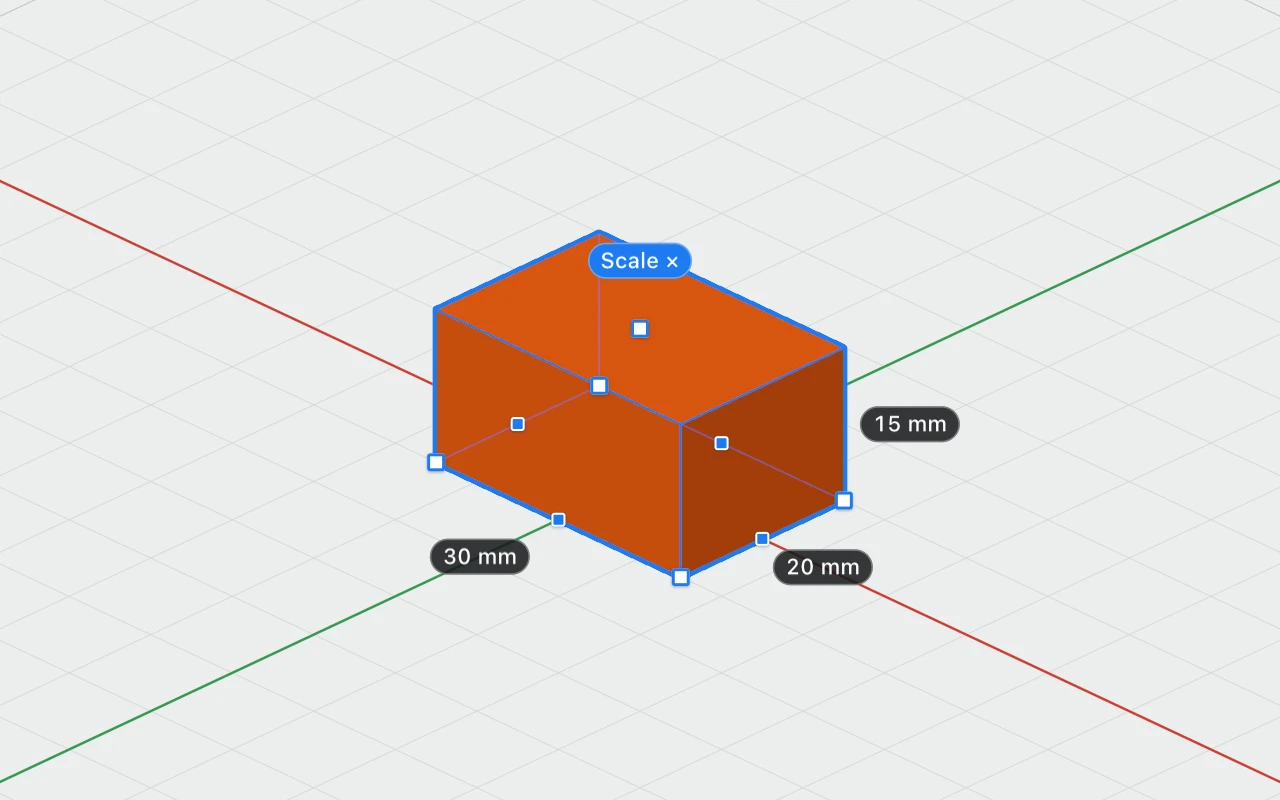
Using it
- Select what to resize.
- Turn the Scale tool on: in the toolbar, Object › Scale, or right-click › Scale. It has no key, since S makes the selection solid.
- Drag a square, as with the handles, or click Scale × above the selection and type a factor: 1.5, 2/3, 150% or ×2. Press Return to scale the selection about the middle of its bottom.
Fillets, chamfers and countersinks are scaled with it.
Leaving it
Press Esc, click empty space, or choose another tool. The selection stays selected.