While a sketch is open, being drawn or reopened with Edit Sketch, you can drag its points to reshape it, drop one on another to join them, or start drawing from one.
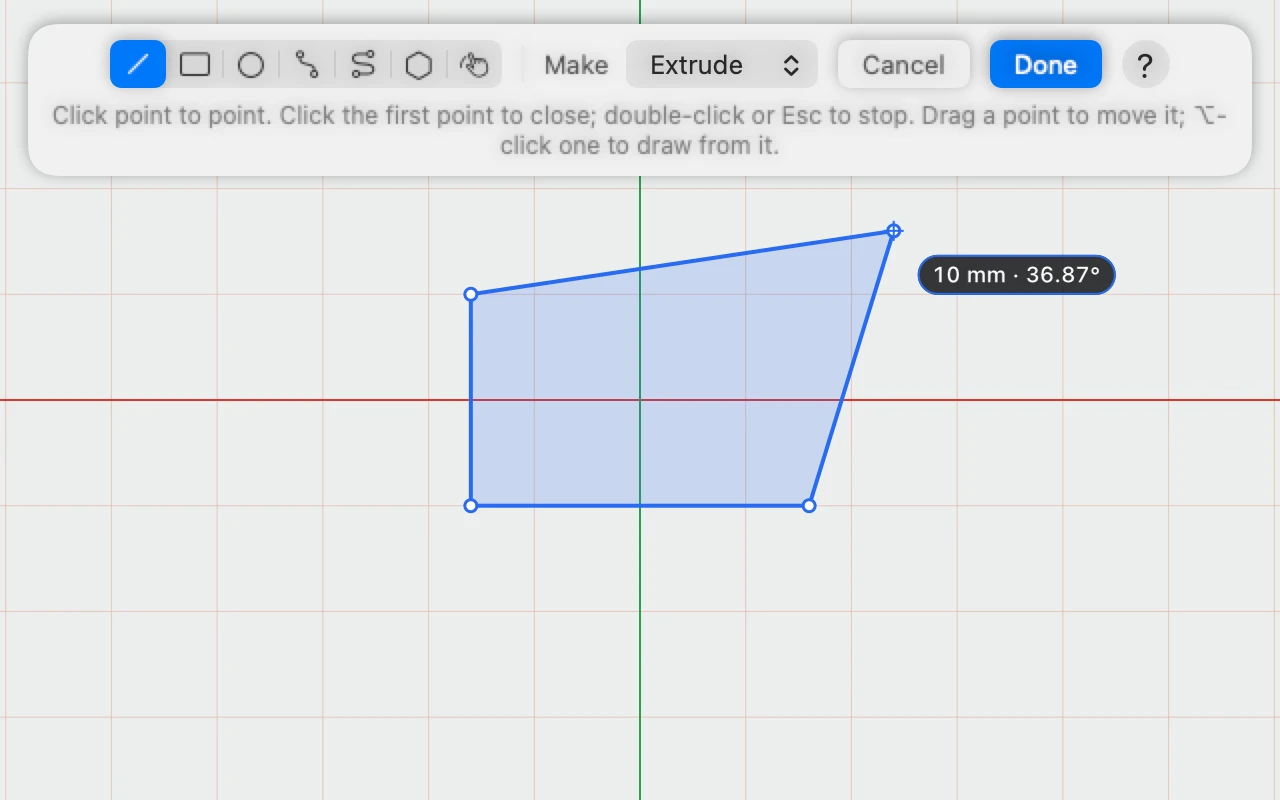
Dragging a point
- Open the sketch: select it and choose Edit Sketch in Sketch ▾, or double-click it. It works the same while you're still drawing.
- Press on a point, shown as a small circle, and drag it. The lines and curves through it follow.
- Let go. It snaps to the grid and to other points as drawing does; hold ⌘ to move it freely.
- Click Done, or Finish for a new sketch.
Each move is one step while the sketch is open, "Move Point", so ⌘Z puts the point back.
Joining points
Drop a point on another and they become one, joining the lines that met them. It's the way to close a shape whose ends didn't quite meet, so it can make a solid.
Drawing from a point
Pressing on a point picks it up, so to start drawing from one instead, with whichever tool is chosen, hold ⌥ and click it.