Design parts that fit.
Caliper3D is CAD made for 3D printing. Bolts that screw into their nuts, gears that mesh, walls as thick as you asked for. Then one watertight STL, ready for your slicer.
On the Mac App Store for macOS 14 or later, and the Microsoft Store for Windows 10 and 11.
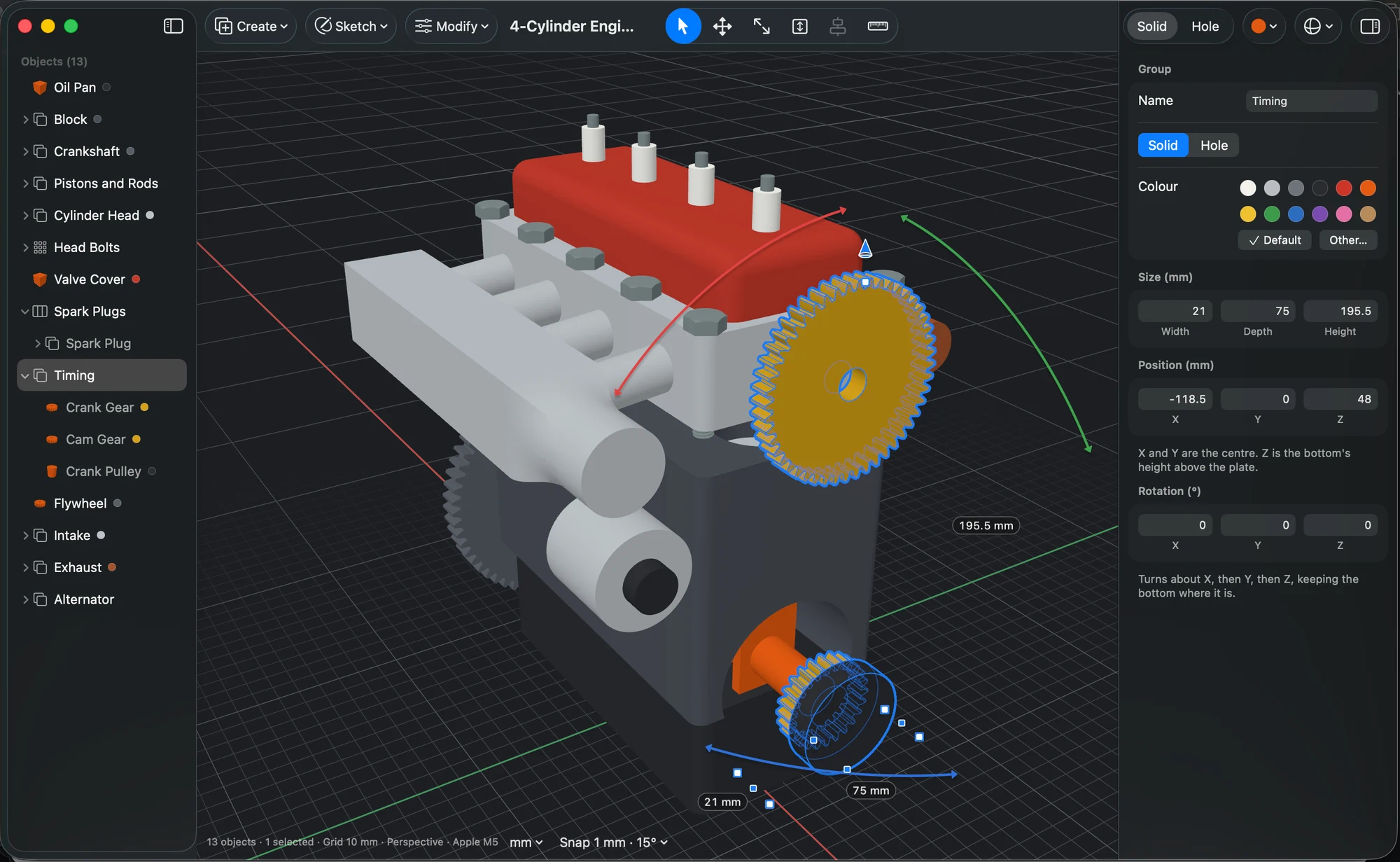
Everything in one window
Your parts by name on the left, exact sizes on the right, and the design in the middle, with handles to drag. A proper Mac and Windows app, in light or dark.
Three ways to shape a part
Cut with holes, combine solids, or push and pull faces. Mix them in one design.
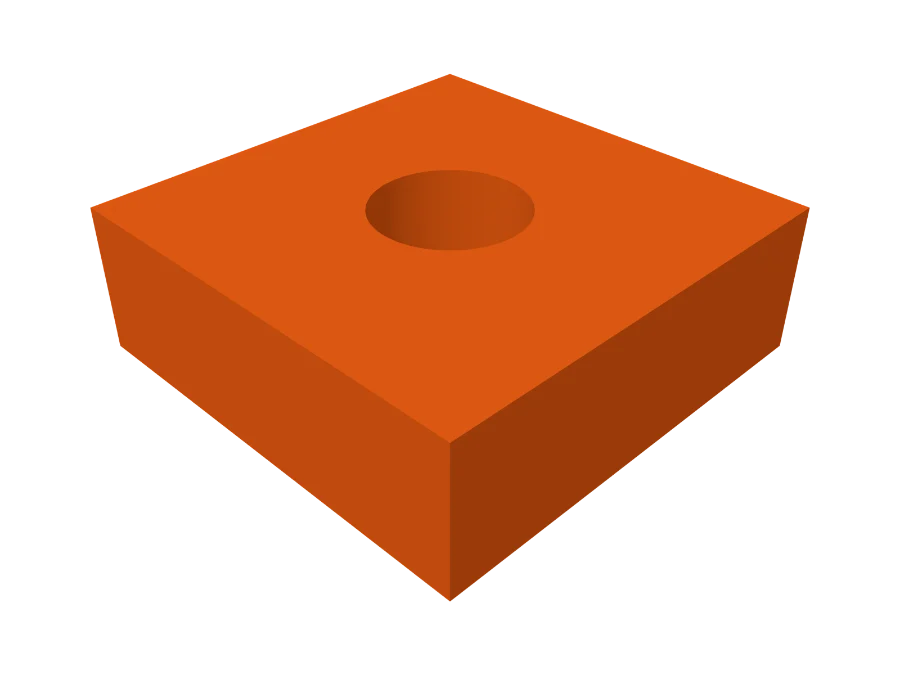
Cut with holes
Make any shape a hole, group it with a solid, and it cuts. Holes show striped, so you can't mistake one.
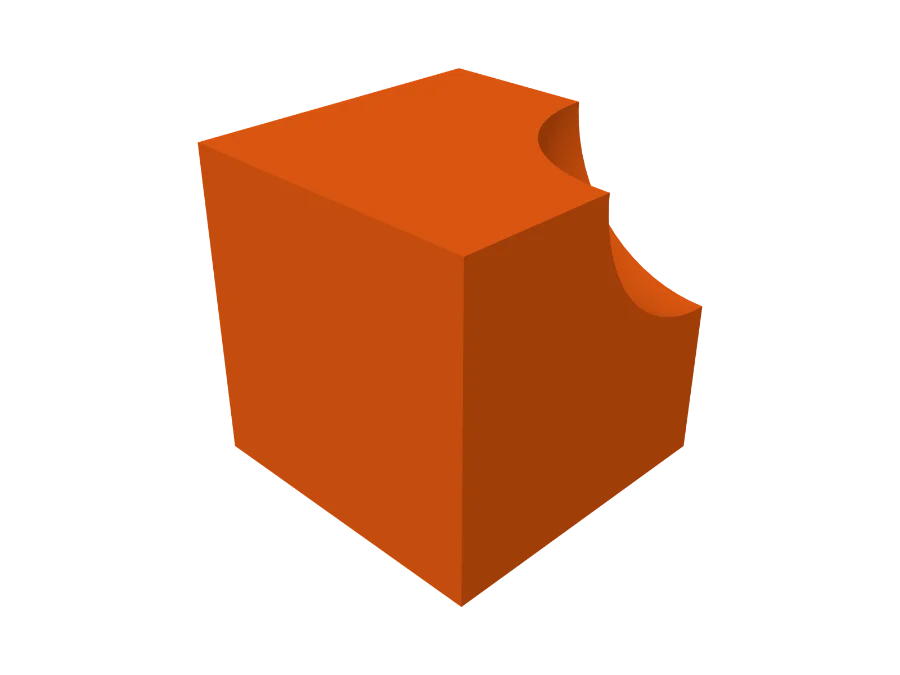
Combine solids
Join, cut or intersect, with a live preview. Break Apart puts every piece back exactly where it was.
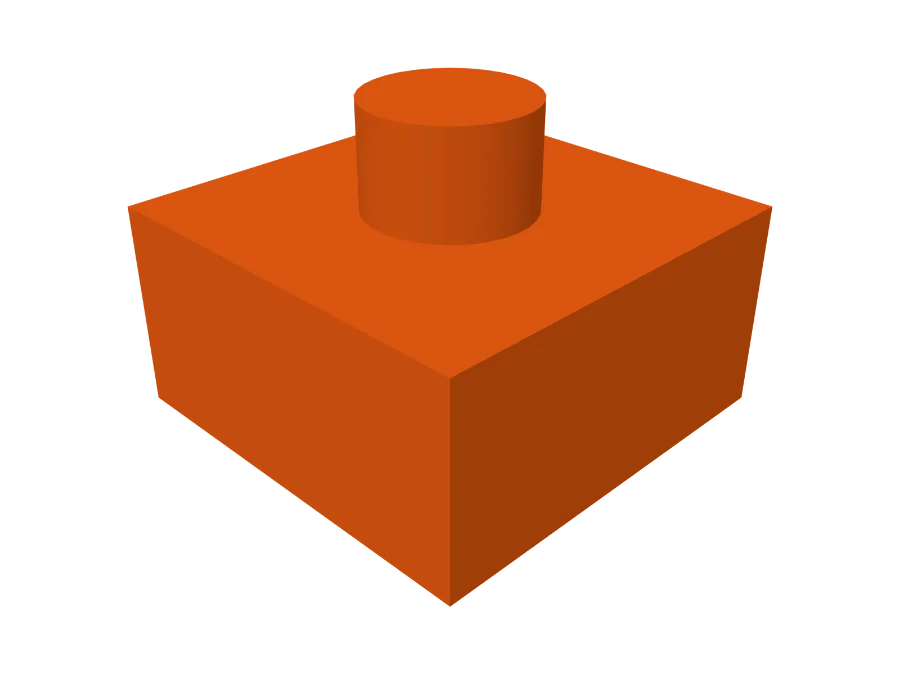
Push/Pull any face
Press P and drag any flat face in or out, or click it and type how far.
Threads that screw together
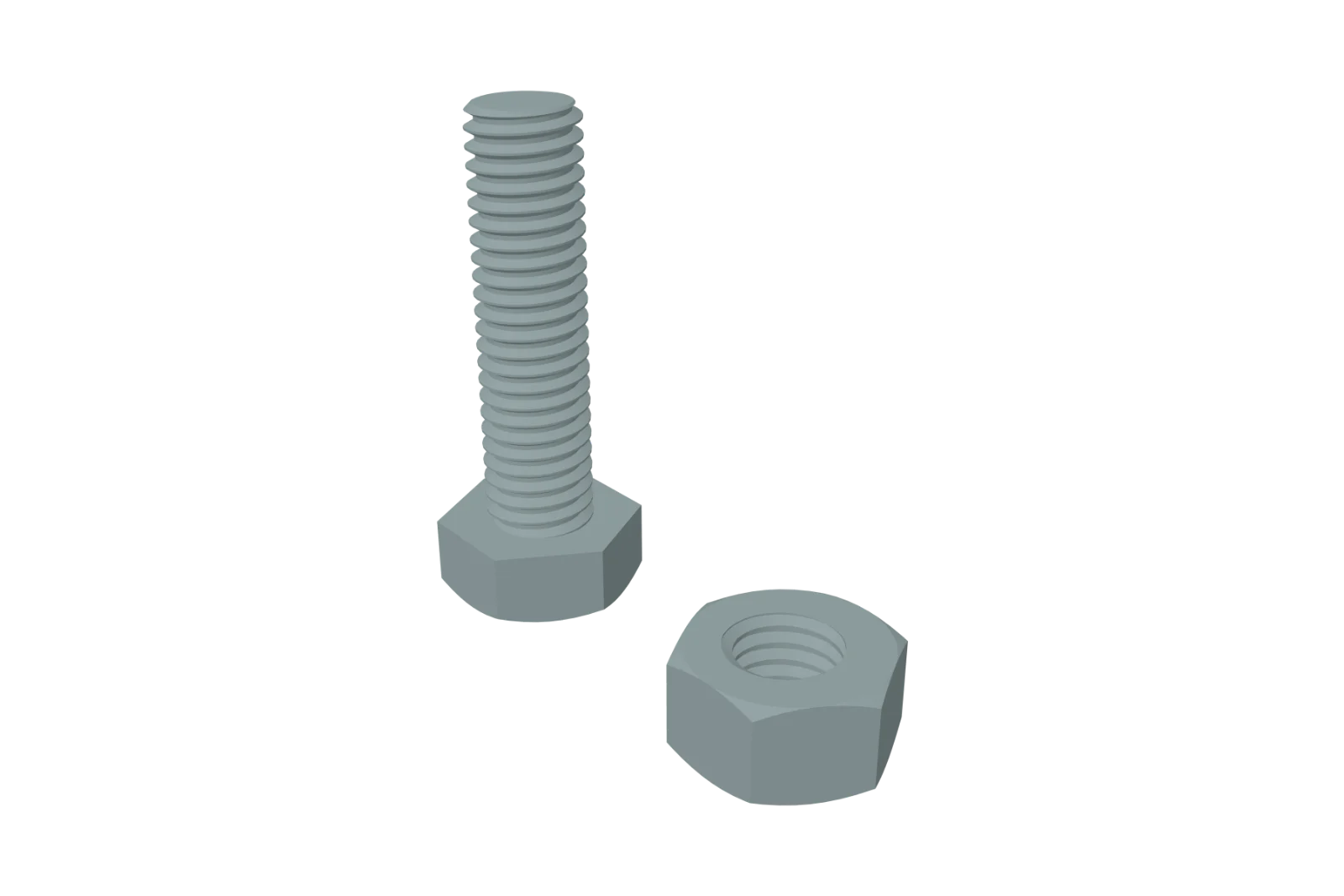
Threaded rods and holes from M3 to M12 at ISO coarse pitches, or any diameter and pitch you type. Left- or right-handed, up to four starts, metric or trapezoidal.
Every thread gets 0.1 mm of clearance, the value an early test print kept, so a printed bolt turns in a printed nut.
- Hex bolts, nuts and washers in ISO sizes, chamfered like real ones.
- Bolts stand head down, as they print best, with a lead-in so the nut starts easily.
- Nut traps: a hexagonal pocket for a steel nut to press into.
- Countersunk and counterbored holes for ISO screws from M2 to M12, or a countersink, counterbore or chamfer on either end of any round hole.
Gears that mesh
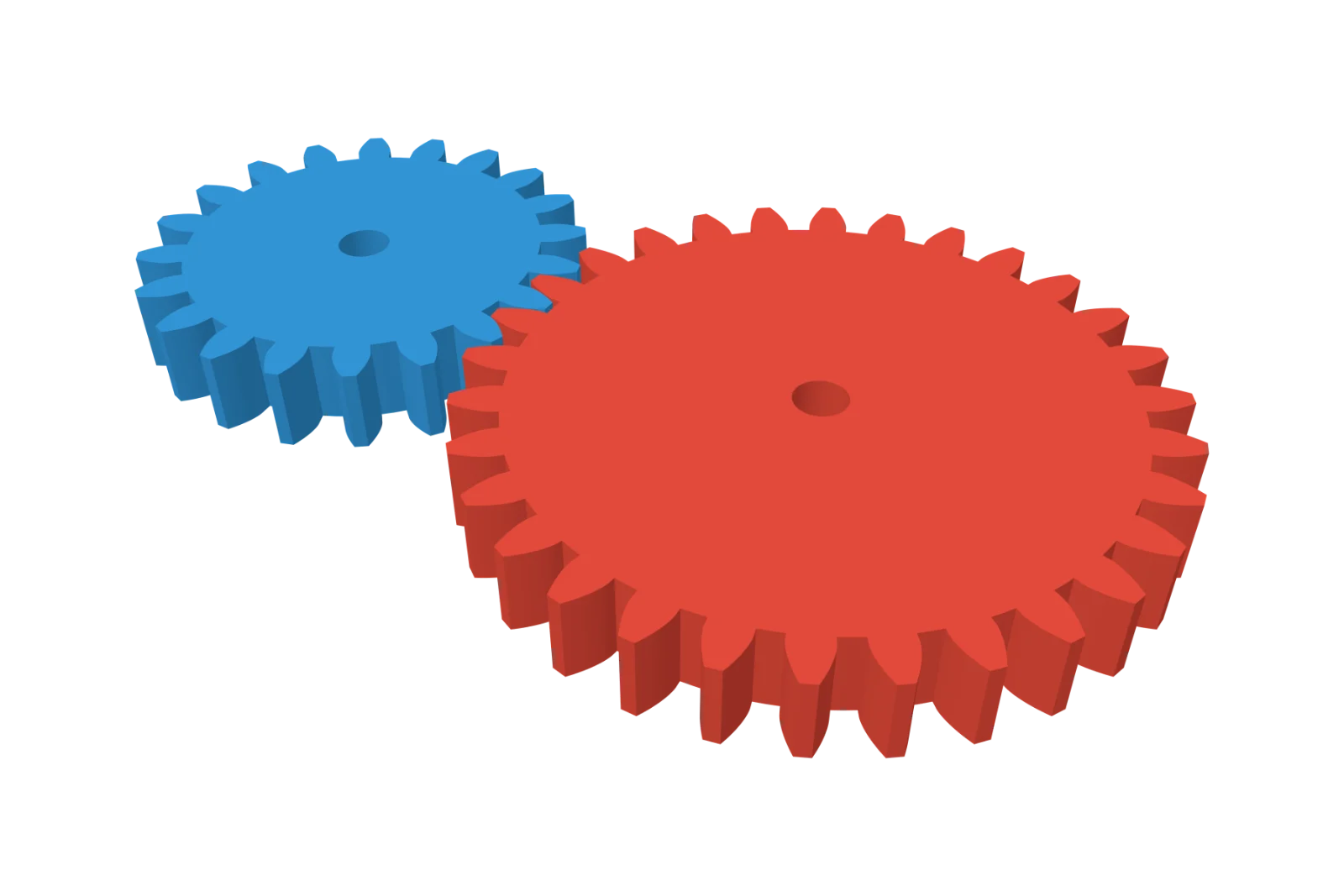
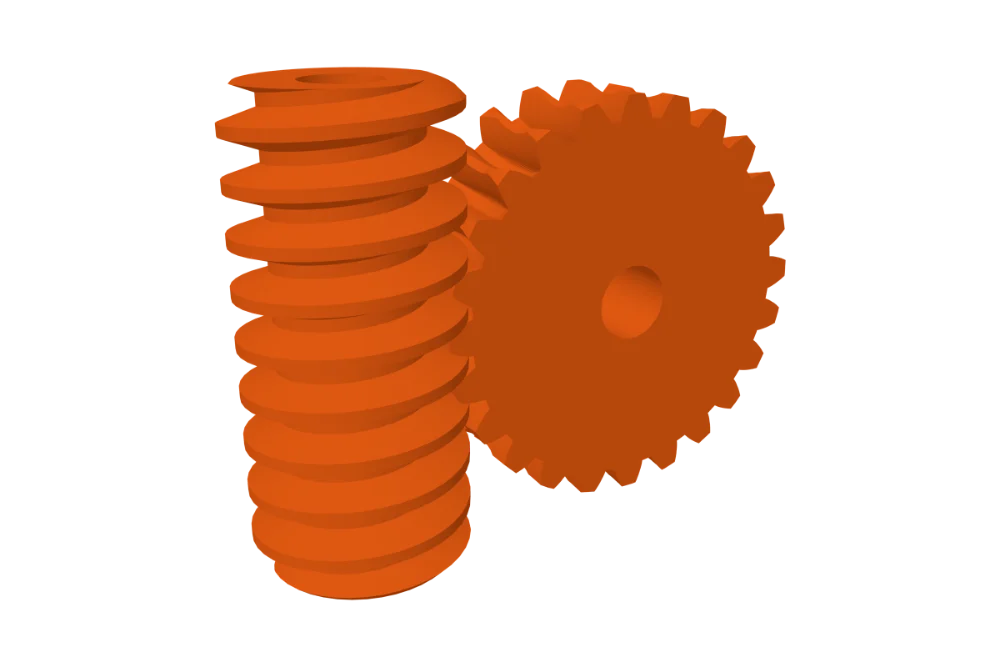
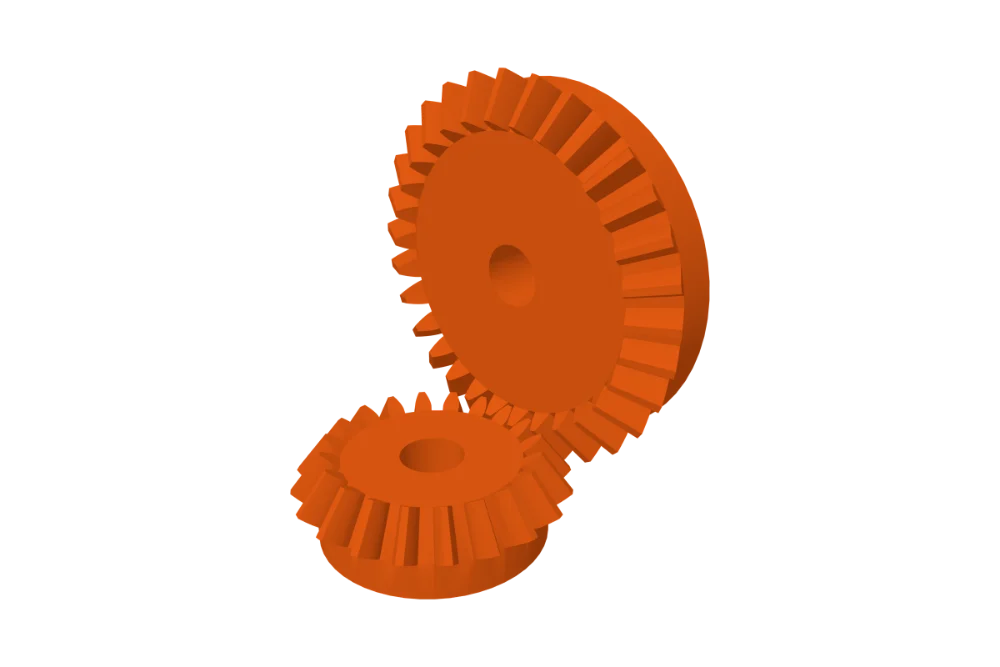
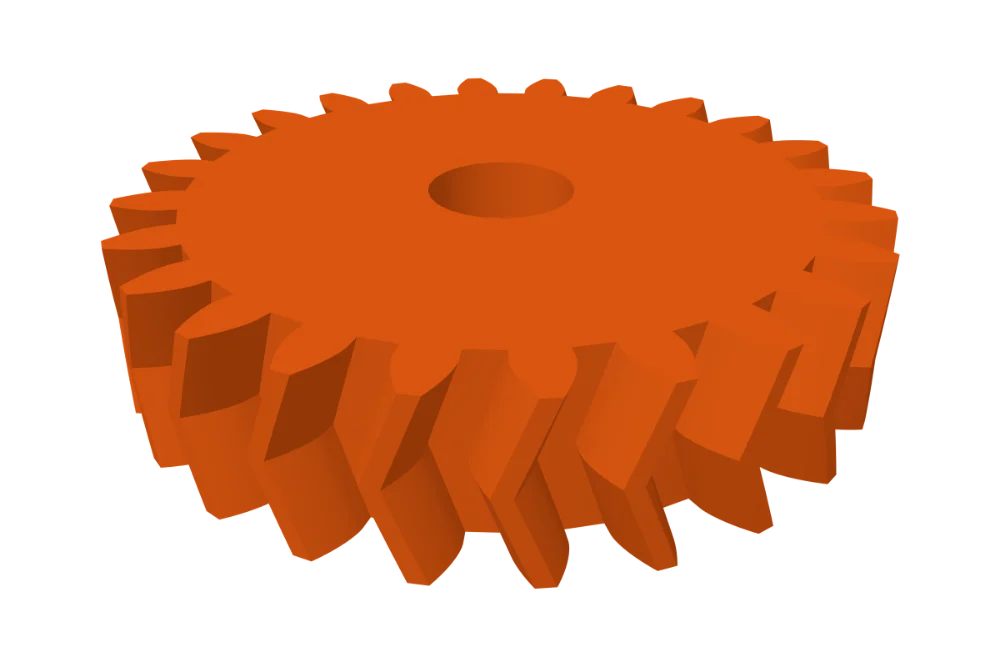
Spur, helical and herringbone gears. Ring gears and racks. Bevel gears for any shaft angle from 30° to 150°. Worms, and worm wheels cut by their own worm, the way a hob cuts a real one.
Right-click a gear and choose Add Meshing Gear. Its partner appears at exactly the right distance, turned so the teeth interlock, with the ratio shown.
- Sized by module or diametral pitch, from 6 to 400 teeth.
- True involute teeth, with clearance on every tooth for printing.
- Round, D-shaft or hex bores, and hubs for a set screw.
Draw it flat, make it solid
Sketch on the plate or on any face, with lines, rectangles, circles, arcs, polygons, smooth curves, and freehand that tidies itself as you let go.
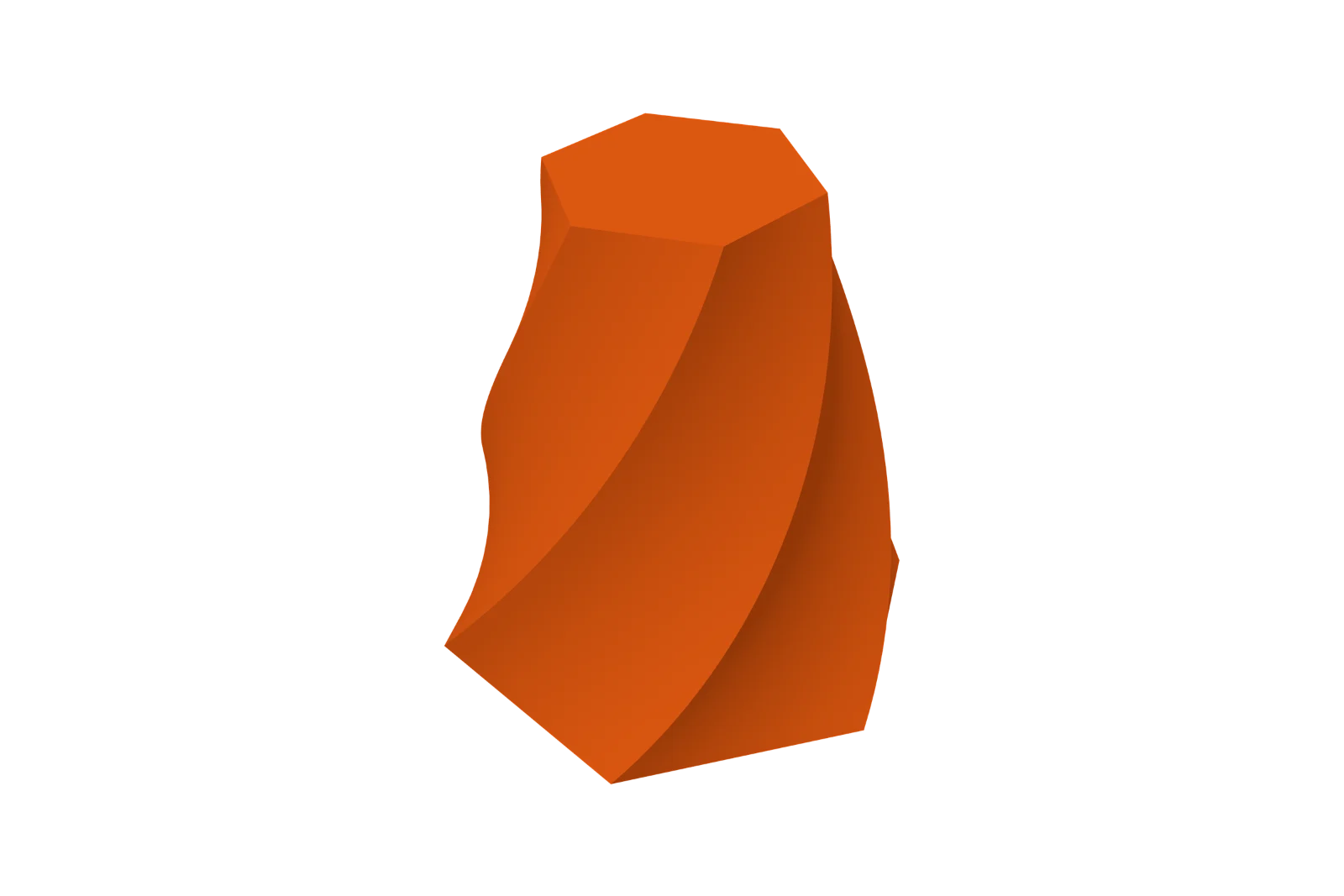
Then extrude it, tapered or twisted up to ten turns, or revolve it into rings and tubes. Round every corner, offset it for a clearance, or hollow it to a wall, in one step. Double-click it later to change the drawing.
Round it, hollow it
Click an edge, or a face for all of its edges, and type a size. You see the result as you type. Ask for too much and Caliper3D tells you the largest size that fits.
Shell hollows anything solid to the wall you ask for, even groups and imported models. Click the faces to leave open. Walls are never thinner than you asked.
Measure like calipers. Type like a machinist.
Click two points for a distance, with its X, Y and Z. Between parallel faces you get the wall's thickness, and between faces at an angle, the angle. Click any round face for its diameter, even inside a hole. Measurements stay, and follow the parts as they change.
Every number field takes any unit, fractions and sums. Design in millimetres, centimetres or inches; your slicer always gets millimetres. Try it: this box reads lengths exactly as the app does.
34.75 mm
Exported to your slicer as 34.75 mm.
Try
Ask Claude to build it
Turn on Allow Claude to control Caliper3D, and Claude, in Claude Code or Claude Desktop, can use every command the app has. You watch each change happen in your window, and Undo takes back any of them.
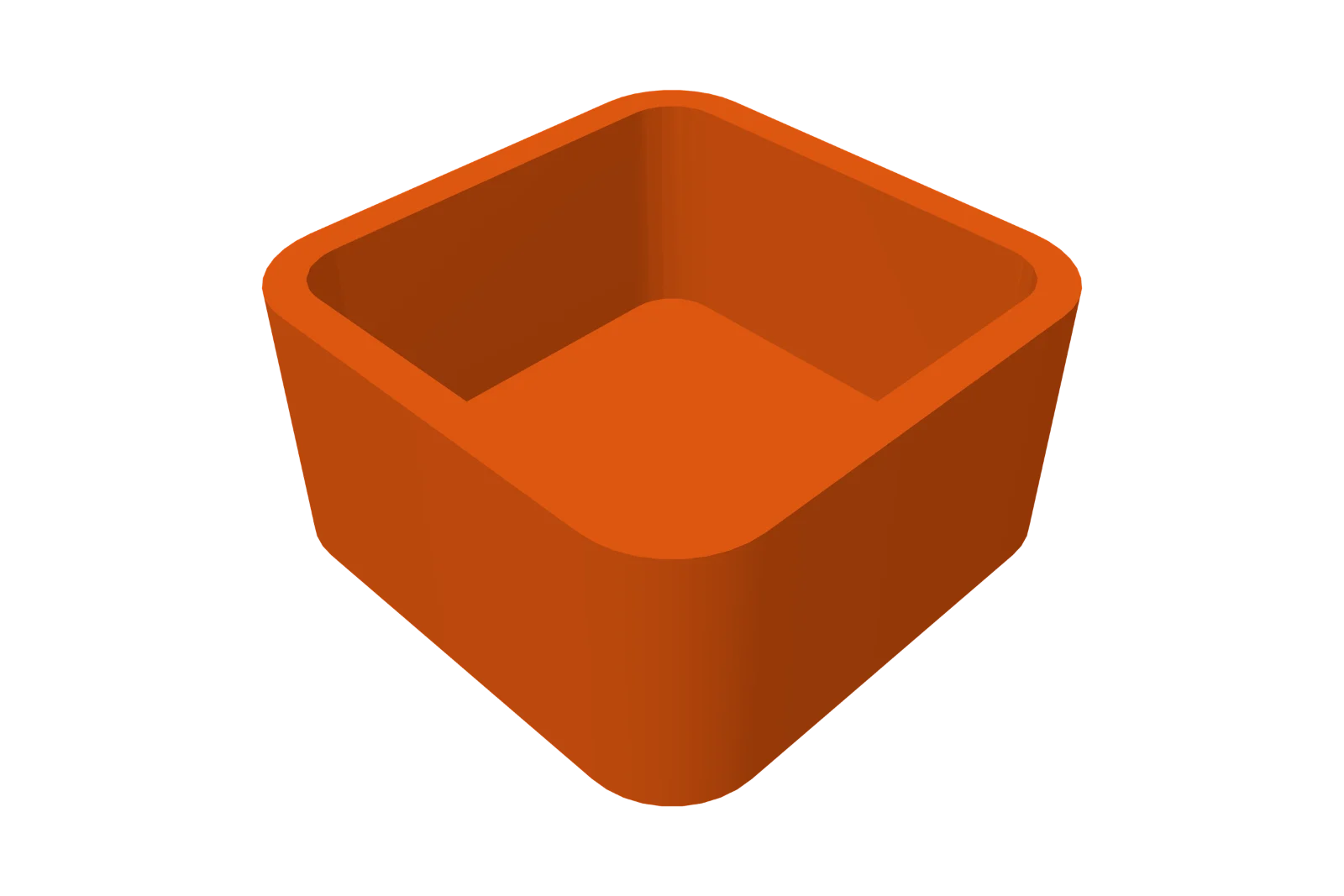
You Make me a box 30 mm square and 15 mm tall, with its corners rounded 5 mm. Hollow it to 2 mm walls, open at the top.
add_shape { "kind": "box", "size": { "width": 30, "depth": 30, "height": 15 } }finish_edges { "edges": "upright", "kind": "fillet", "size": 5 }shell { "thickness": 2, "direction": "inward", "open": ["top"] }render {}
Claude Done. It's a 30 × 30 × 15 mm box with 5 mm fillets on its upright edges, shelled inward to 2 mm walls with the top open. Each step is its own undo step.
- Off until you turn it on. Only programs on your own computer can connect, with a secret token kept in your Mac's Keychain or Windows' Credential Manager.
- 52 tools, from adding shapes and meshing gears to measuring and rendering, so Claude can check its own work.
- Set up in one click: Settings' Copy Claude Code Setup copies the command, token and all, to paste into a terminal.
Start from a template
Fourteen to print or pull apart, from a calibration cube to a four-cylinder engine. Each one opens as an ordinary design you can change.
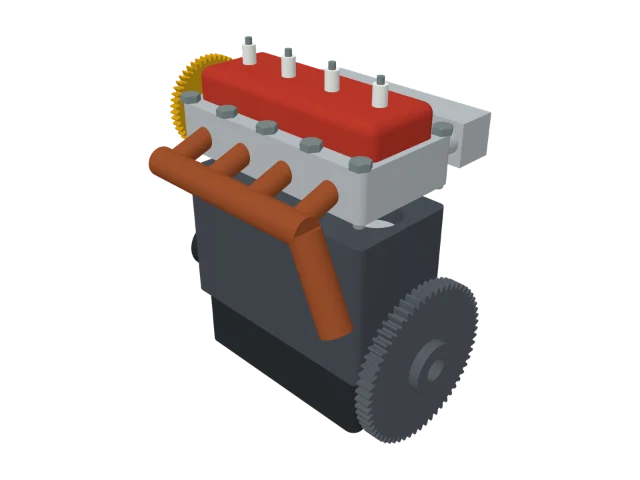 4-Cylinder Engine
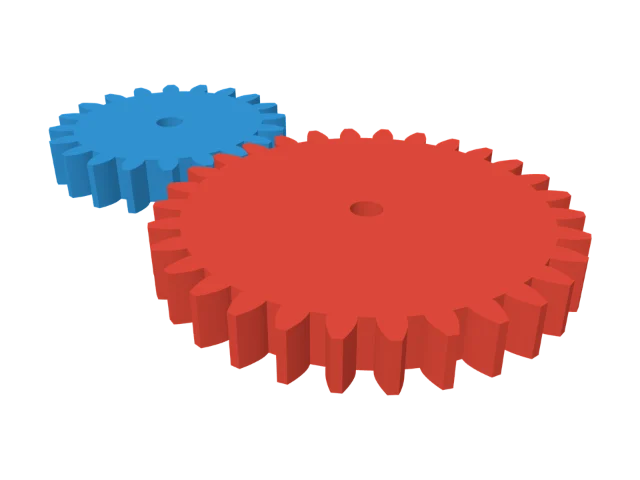 Gear Pair
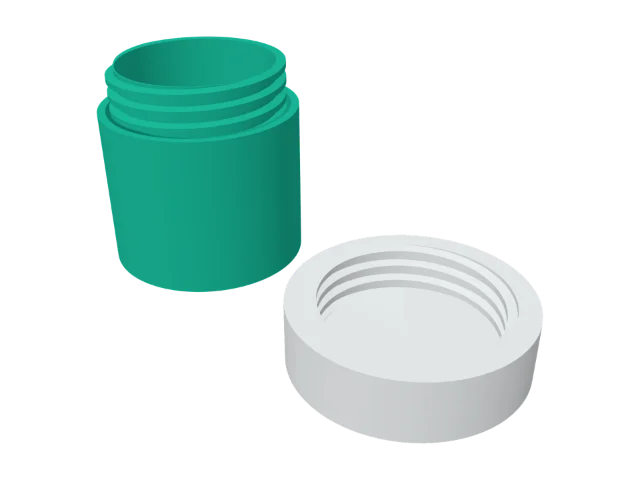 Jar and Lid
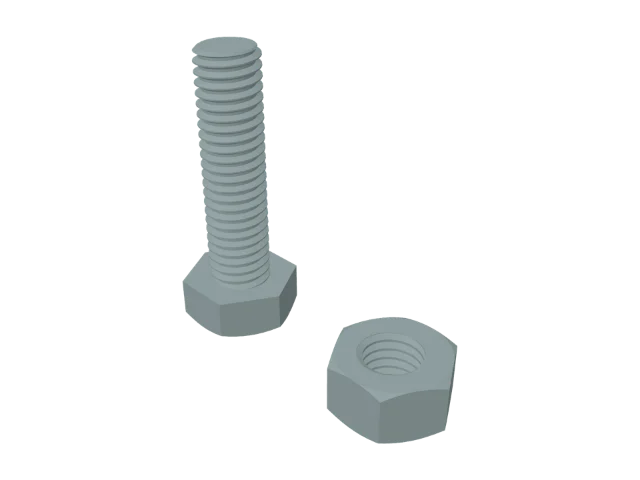 Bolt and Nut
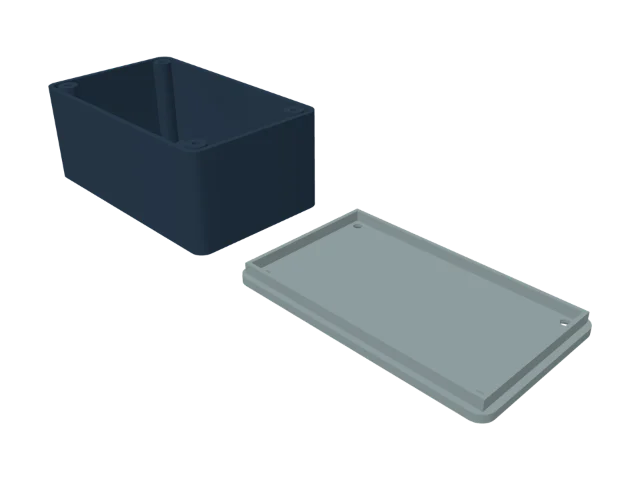 Project Box
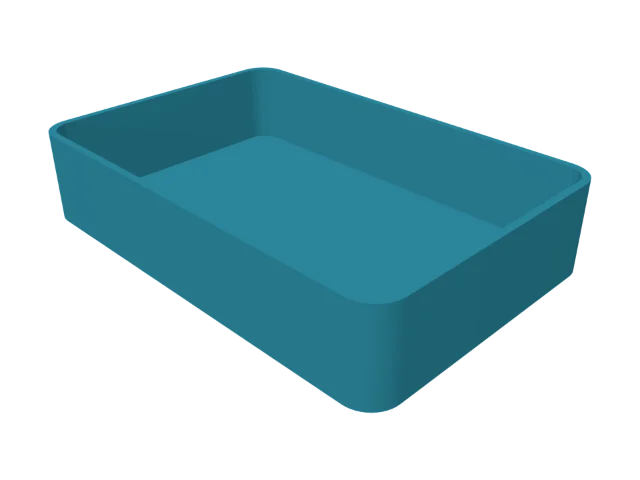 Tray
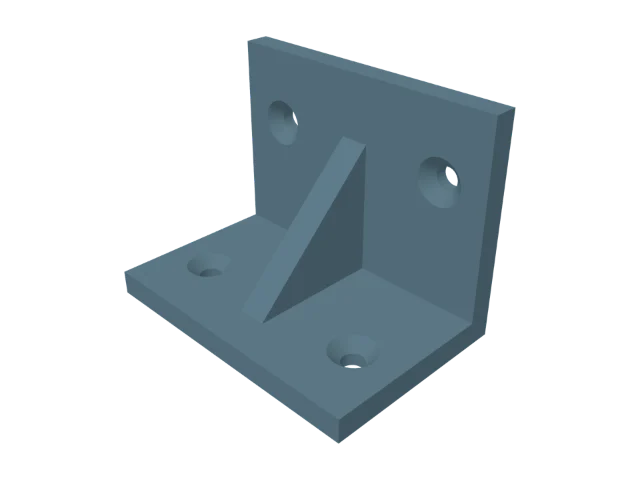 Wall Bracket
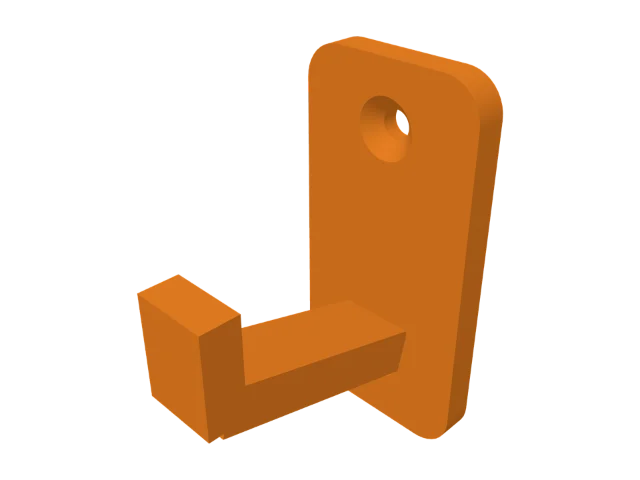 Hook
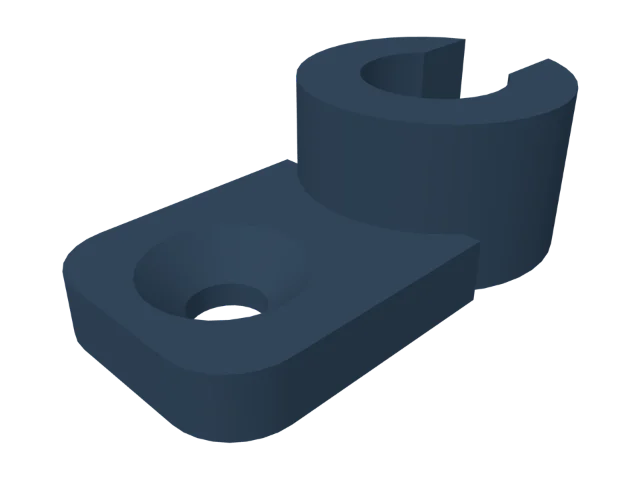 Cable Clip
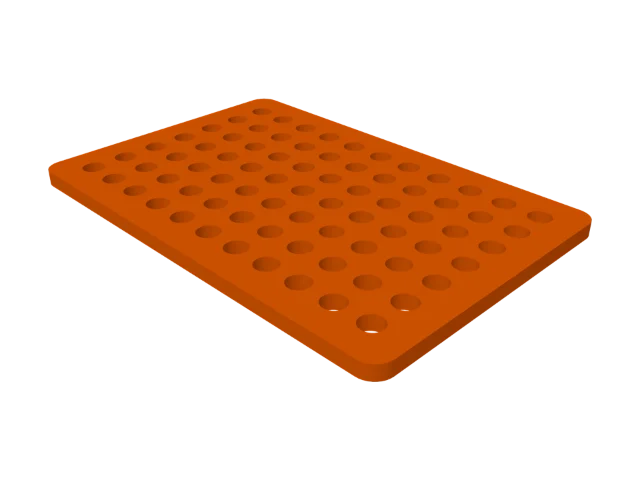 Pegboard
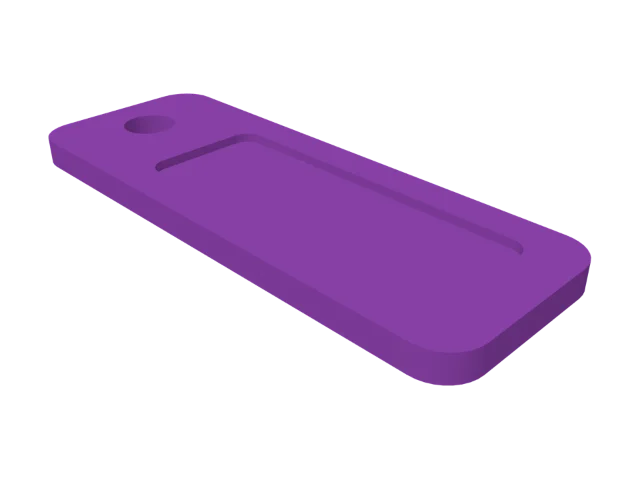 Name Tag
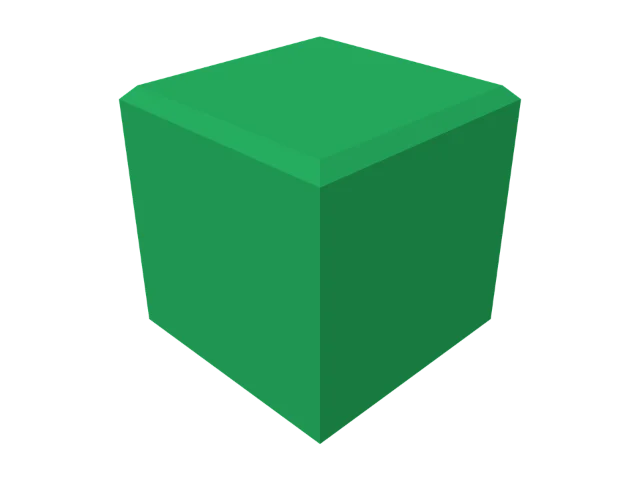 Calibration Cube
Also included: a Fit Test and an Overhang Test, for tuning your printer.
And everything else
| Feature | What you get |
|---|---|
| Click to place | Shapes follow the pointer and line up with what's under them. |
| Handles | Drag to move, lift, resize and turn. Click a live size and type over it. |
| Smart snapping | Parts line up flush, edge to edge or centred, with a guide that says which. |
| Workplanes | Put the grid on any face. New shapes and drags follow it. |
| Align and distribute | Nine ways to line things up, even gaps, and Drop to the bed. |
| Lay flat | Pick a face, and the part turns so that face sits on the bed. |
| Push/Pull | Press P and drag any flat face in or out, or type how far. |
| Loft | Blend one face into another, smooth or straight, with a twist if you like. |
| Route | Click two flat faces for a smooth bend that keeps the first's cross-section, flush at both ends, like a hose elbow. |
| Drill | Pick a round, square, hexagonal or polygon drill and click a face. The hole goes square in, through or to a depth. |
| Mirror and patterns | Rows, grids and circles of up to 500 copies that follow the original. |
| Colours | Twelve swatches like common PLA spools, or any colour you like. |
| Object list | Every part by name. Group, hide and lock. |
| Undo | Every change is one named step. Esc during a drag puts everything back. |
| STL import | Binary or ASCII, repaired as it comes in, ready to cut and combine. |
| STL export | One watertight mesh in millimetres, Z up, holes already cut. |
| Accuracy | Curves within 0.02 mm. Booleans by Manifold, so results are closed solids. |
| Templates | Fourteen to start from, from a calibration cube to a four-cylinder engine. |
| A real Mac app | Metal graphics, no CPU while idle, Finder previews, iCloud Drive, light and dark. |
| A real Windows app | Direct3D graphics, redrawn only when something changes, every command on a ribbon, light and dark. |
Buy Caliper3D
Caliper3D
- Price
- Paid once. No subscription.
- Sold by
- The Mac App Store and the Microsoft Store, which handle payment, receipts and refunds
- Mac
- macOS 14 (Sonoma) or later, on Apple silicon or Intel
- Windows
- Windows 10 (version 2004 or later) or Windows 11, on a 64-bit Intel or AMD PC
- Updates
- From the store you bought it from
Each store sells its own copy, so buying on one doesn't give you the other.