The Measure tool shows how far apart two points, edges or faces are, the gap between two faces, the angle between them, or a round face's diameter. Measurements stay on screen and follow their objects as you change the design, so you can watch a gap while you adjust it.
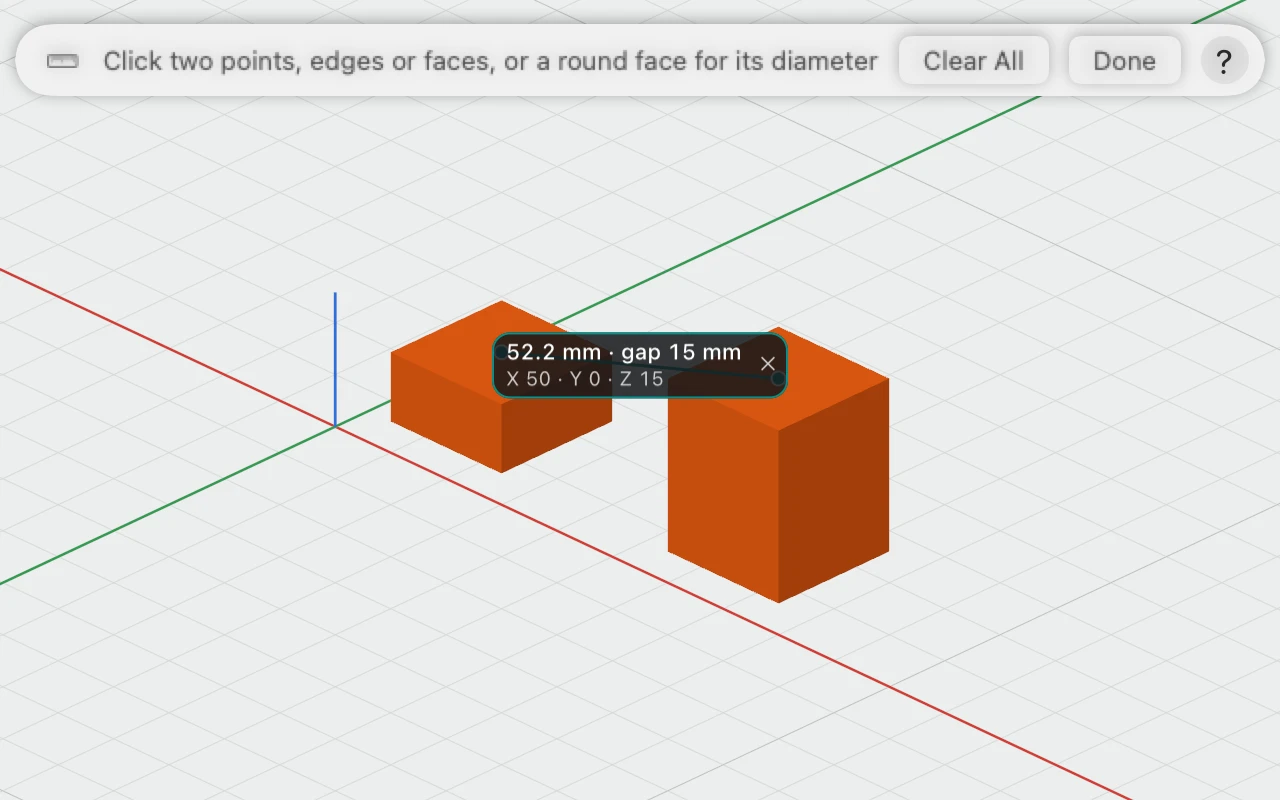
Measuring
- Turn on Measure: in the toolbar, R in the 3D view, View › Measure, or right-click › Measure.
- Click the first point, edge or face, then the second. The measurement appears between them.
- Keep clicking pairs for more. Click Done, or press Esc or R, when you've finished.
What it shows
- The distance between the two points, and under it how much of it is along X, Y and Z. To an edge or a face it's the shortest distance, as Edges and faces below explains.
- The gap between two parallel faces, such as two tops at different heights, the distance square across from one to the other.
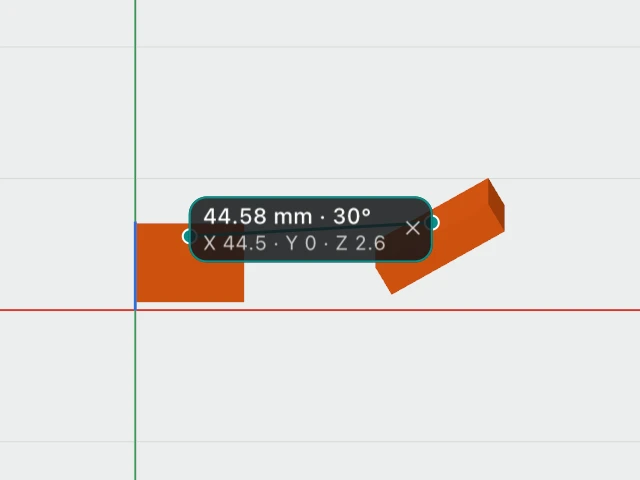
- The angle between two faces that aren't parallel.
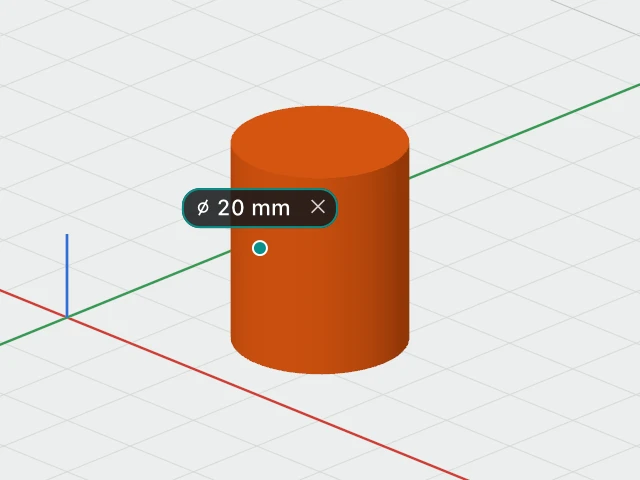
- The diameter of a round face: click a cylinder's or cone's side, a sphere or a hole's wall, and its diameter shows straight away, such as "⌀ 20 mm".
Edges and faces
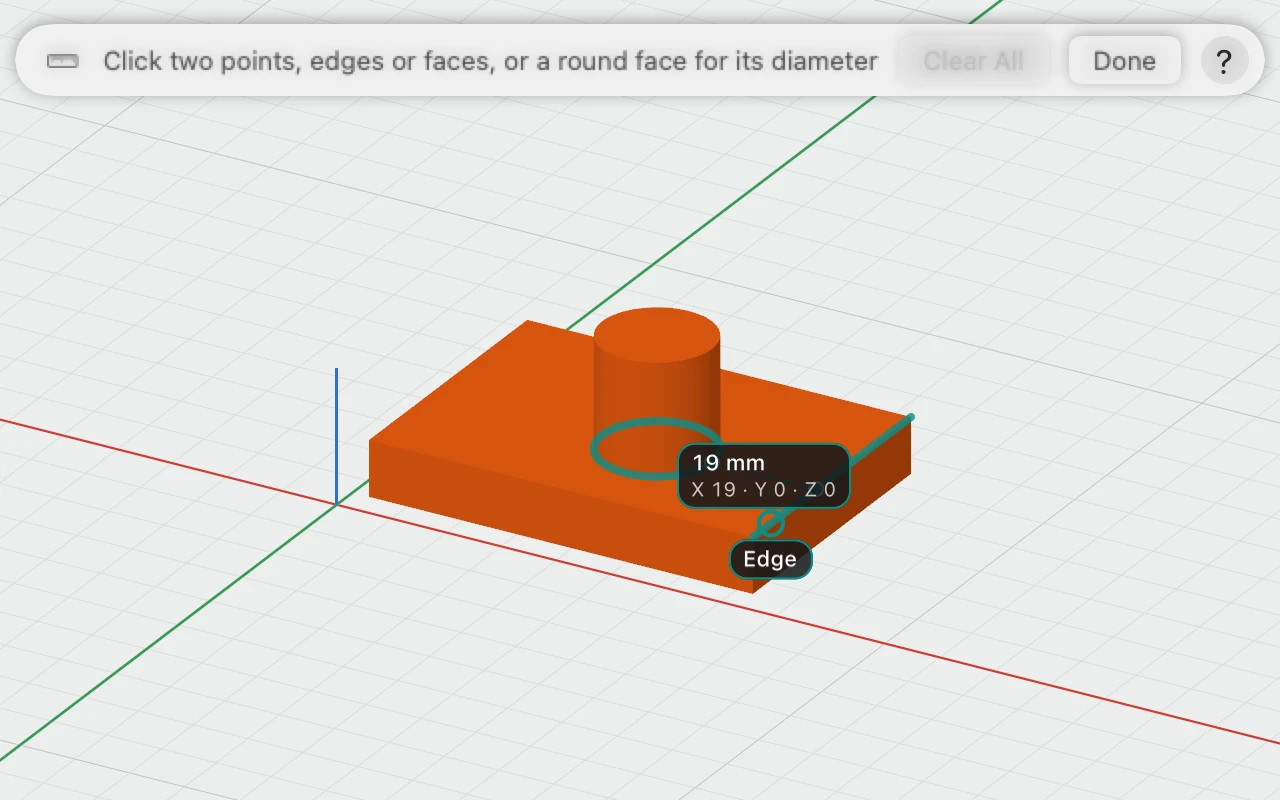
Often what you want is the shortest distance between two things, such as from the base of a cylinder to the nearest edge of the box it stands on.
- Edges: point at a face near one of its edges, and the whole edge lights up: a box's edges, and the rims round the ends of cylinders, cones and threads. Click it, then click another edge or a point, and you get the shortest distance between them, drawn between their closest points.
- Where a round side meets a flat face: point at the flat face beside it, such as a plate round a hole or a box under a cylinder standing on it, and that rim lights up too. It's worked out from the shapes themselves, so it's exact.
- Faces: click a flat face or the plate, and a point or an edge measures straight out from it, square to the face. Two faces measure between where you clicked them, with the gap or the angle.
Where the points go
Points snap to the clicked object's corners, the centres of its faces and the centres of its circles when the pointer comes near one, and to the middles of its edges when it's close. Otherwise a point is where you click, on a face or on the workplane. What the next click would take shows as you move the pointer, labelled Corner, Edge, Face and so on.
Measurements stay
Measurements stay pinned to their shapes: move, turn or resize an object and its measurements follow, the numbers changing as it does. One whose shape is deleted goes too.
To clear them, click a measurement's ✕, the bar's Clear All, or View › Clear Measurements (also on the right-click menu). They belong to the window and aren't saved with the design.