Line objects up with each other, space them out evenly, drop them onto the plate, or lay one down on a face.
The Align tool
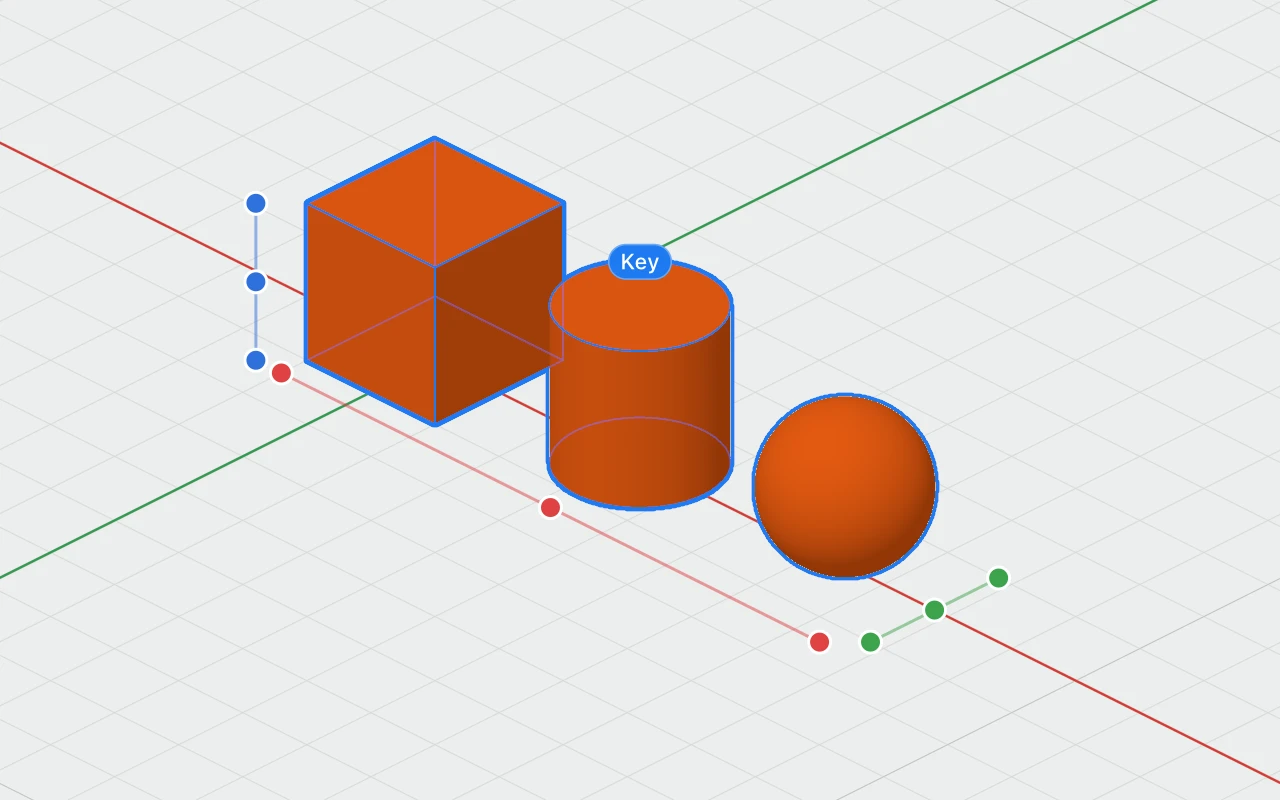
- Select two or more objects.
- Turn the Align tool on: in the toolbar, L, or right-click › Align. Dots replace the handles: three for each direction, beside the selection.
- Click a dot to line everything up there: at the low side, the middle or the high side, along X (red), Y (green) or Z (blue).
- To line the others up with one object, click it first: it becomes the key, labelled so, and stays put. Click it again to clear it.
To leave it, press Esc, click elsewhere, press L again, or choose another tool.
From the menu
Object › Align ▸, or Modify ▾ › Align ▸ in the toolbar, does the same without the dots, using the key if the Align tool has one:
- Left, Centre Left to Right, Right
- Front, Centre Front to Back, Back
- Bottom, Centre Bottom to Top, Top
Distribute
With three or more objects selected, Object › Distribute ▸ spaces them out Left to Right, Front to Back or Bottom to Top: the two outermost stay where they are, and the rest move so the gaps between them are all the same.
Drop
D, Object › Drop or right-click › Drop lowers the selection straight down onto the plate, or onto the workplane if one is set. Everything selected moves together, so a stack stays stacked.
Lay flat on a face
Right-click a face and choose Lay Flat on This Face: the object turns so that face is underneath, and sits on the plate. Or choose Object › Lay Flat on a Face…, then click the face.