Drill makes a hole in an object the way a real drill would: choose the drill's shape and size, point at a face, and click. The hole goes square into the face, right through or to the depth you choose, and you can drill as many as you like.
Drilling a hole
- Choose Modify ▾ › Drill… in the toolbar, or Object › Drill…, or right-click in the view.
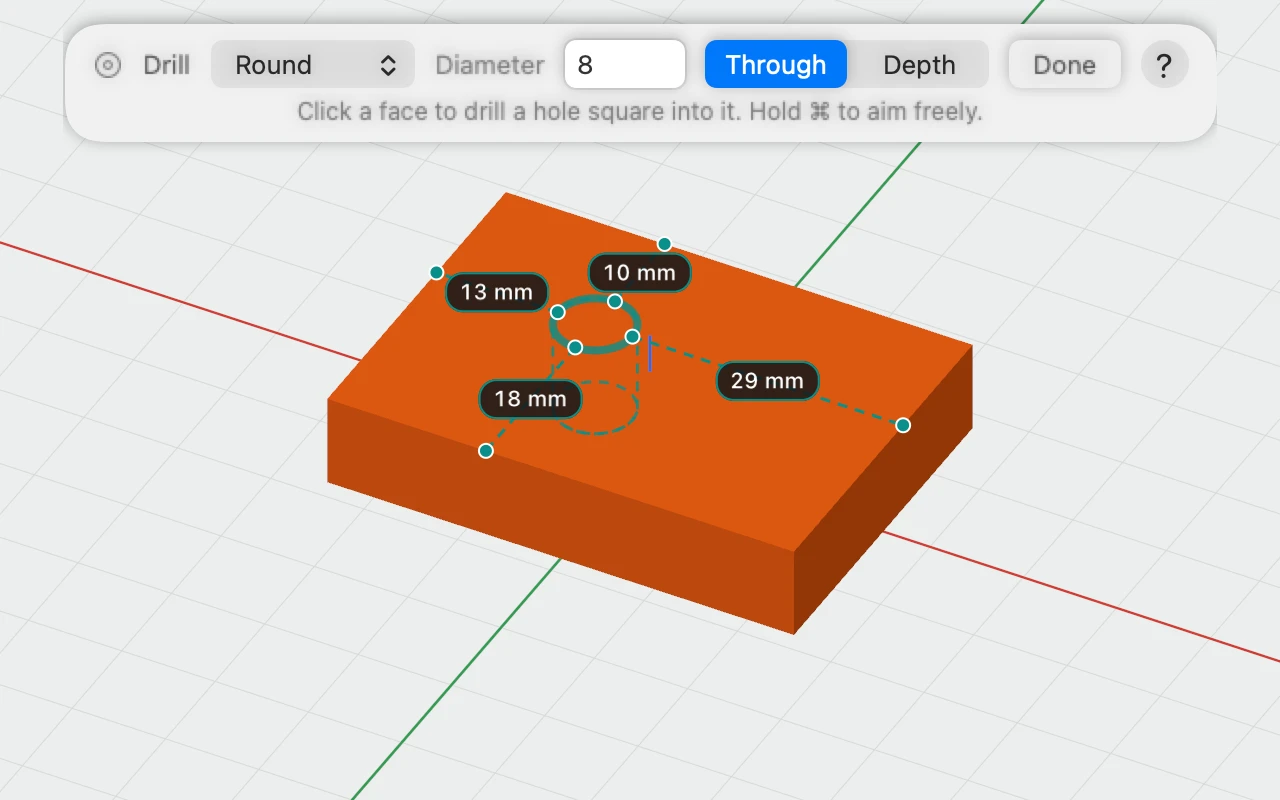
- In the bar, choose the drill's shape and type its size.
- Choose Through to go right through the object, or Depth and type how deep.
- Point at a face. A teal outline shows where the hole will go, with its distance to each of the face's edges, and dashed lines show how far it goes in, as if you could see through the object.
- Click to drill it. The tool stays on, so you can drill the next one straight away.
The hole's outline stays where you clicked until the hole appears. In a detailed object that can take a moment, and while it does, a progress bar in the bar says it's drilling.
Click Done or press Esc when you've finished. Each hole is one ⌘Z.
Shapes and sizes
- Round: the size is the hole's diameter.
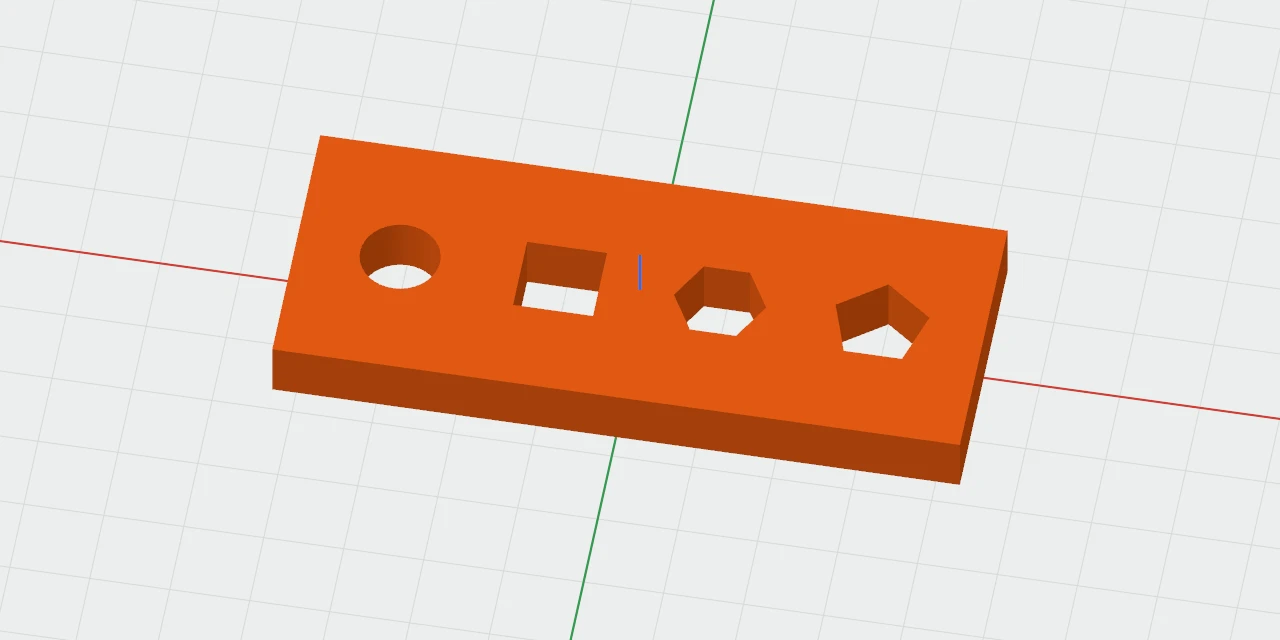
- Square, Hexagon and Polygon: the size is across flats, from one side to the side opposite, so a 10 mm hexagon fits a 10 mm spanner, ready for a nut. For Polygon, set the number of sides, from 3 to 64.
Square and polygon holes line up with the face: a square hole's sides run along a box's sides, and a hexagon has a flat at the bottom.
Where it goes
The hole lines up just as a placed shape does:
- The grid counts from the face's edges, so with 1 mm snapping the hole lands a whole number of millimetres from the nearer edge each way.
- Near the middle of the object, it snaps to the centre, and a pink guide says so.
- Hold ⌘ to drill exactly where you point.
The distances go to all four sides of a box's face, or to the rim on either side of a round end. On other faces, such as a cylinder's curved side, the hole still goes square into the face where you point, with no distances.
Locked objects can't be drilled, and nor can holes.
Through or to a depth
- Through goes right through the object and out of the far side, however thick it is there.
- Depth stops at the depth you type, with a flat bottom, which prints cleanly: a pocket for a magnet, say, or a nut.
After drilling
Each hole is an ordinary hole, named Drill 1, Drill 2 and so on, grouped with the object it was drilled into so that it cuts. A round hole is a cylinder hole, a square one a box hole, and the other shapes a sketch pushed in. Double-click the object to edit inside it, then move, resize or delete a hole like any other.