Before you change something, select it. Selected objects are outlined in blue, with their edges drawn, and handles appear for moving, resizing and turning them.
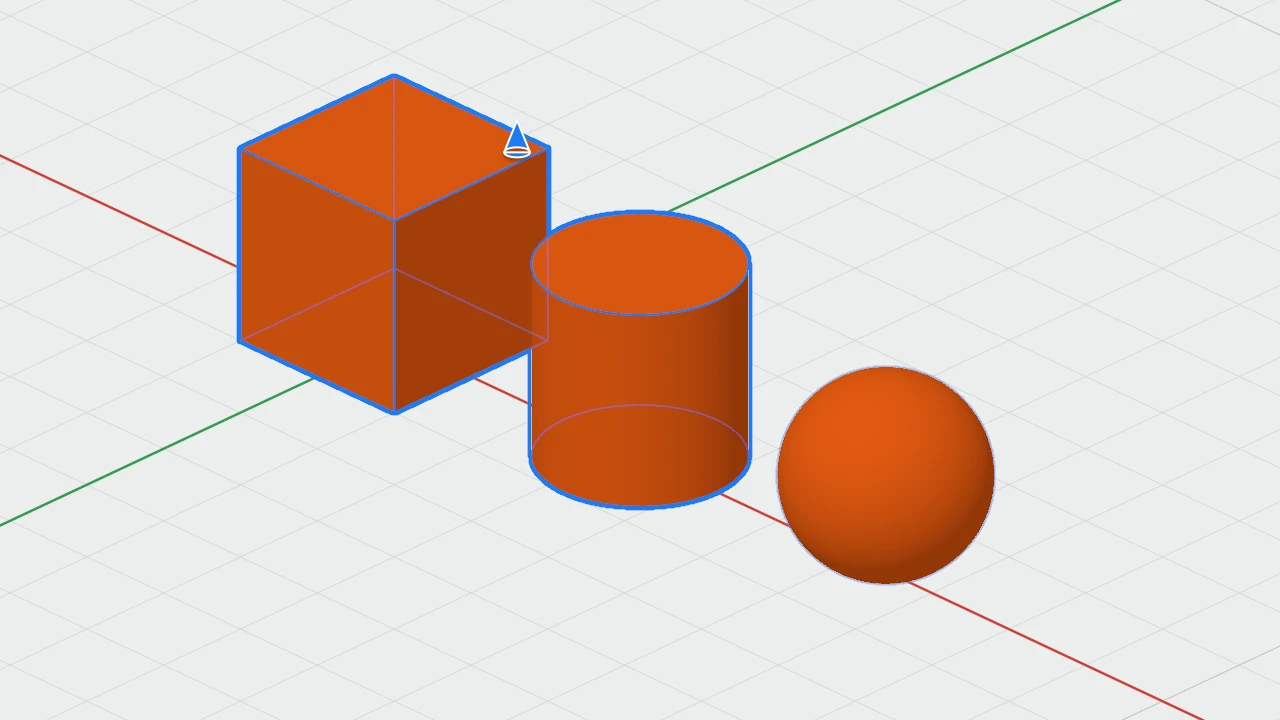
Selecting in the 3D view
- Click an object to select it on its own.
- ⇧-click an object to add it to the selection, or to take it out.
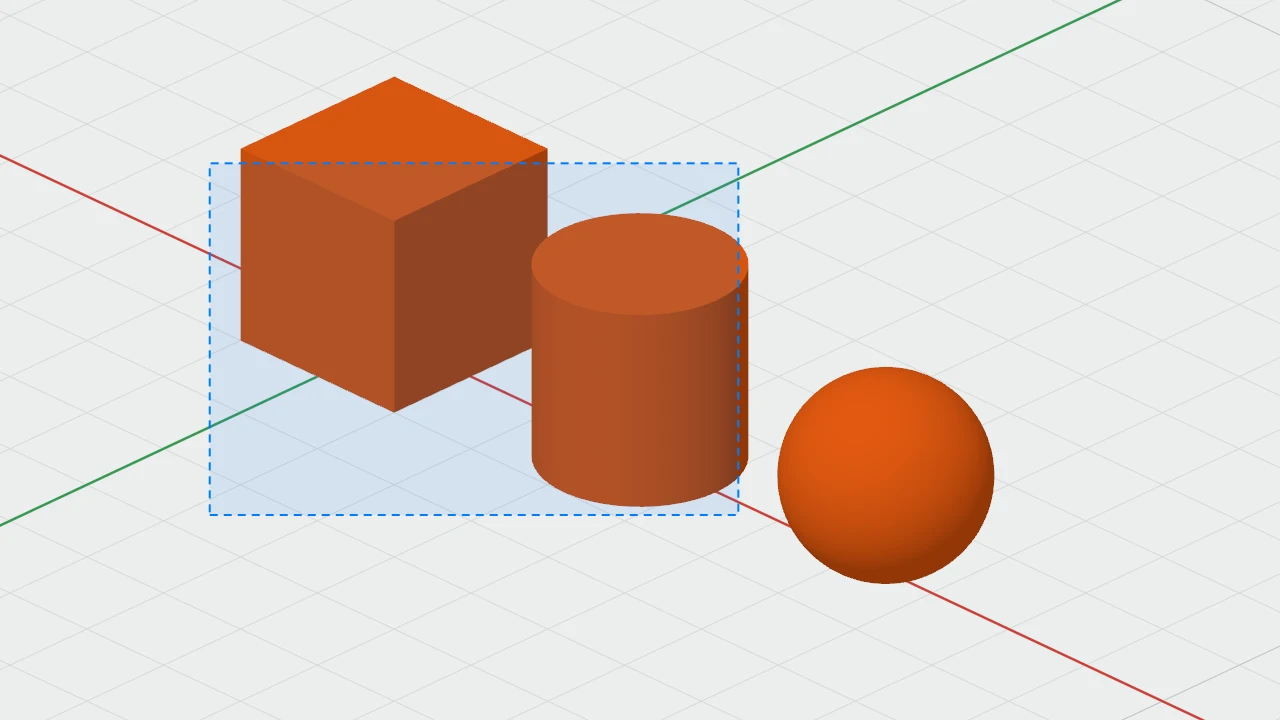
- Drag across empty space to draw a rectangle: every object it touches is selected. Hold ⇧ as you start to add them to what's selected already.
- ⌘A (Edit › Select All) selects everything that's shown and not locked.
- Click empty space, or press Esc, to select nothing.
Pointing at an object outlines it lightly, so you can see what a click will pick. A selected object behind another stays outlined, so you can find it.
Groups and what's inside them
Clicking any part of a group, a combined object or a pattern selects the whole of it. To select something inside, double-click it to edit inside: see Groups and Editing Inside.
In the object list
Clicking a name in the object list selects that object, in the 3D view too. ⌘-click or ⇧-click selects more. See The Caliper3D Window.
Locked and hidden objects
- Locked objects can be clicked and selected, to look at them in the inspector, but ⌘A and rectangles leave them out, and they get no handles. See Hiding and Locking.
- Hidden objects can't be selected until they're shown again.