Caliper3D works in millimetres, centimetres or inches. Sizes are always kept exactly; the units only change how they're shown and what a plain number you type means.
Your default units
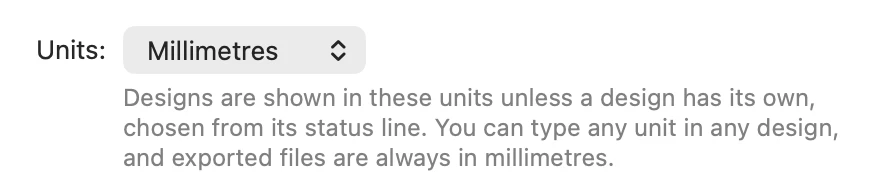
Choose Caliper3D › Settings… (⌘,) and pick Units. Every design shows these units unless it has its own.
A design's own units
The units menu in the status line, at the bottom of the window, shows the design's units, such as "mm". Choose Default to follow Settings, or a unit for this design only. It's saved with the design, so a design made in inches opens in inches anywhere, and changing it is an undo step.
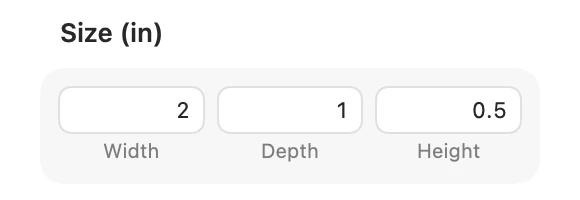
The inspector, the handles' labels, measurements and the grid's spacing all follow the design's units. The snap steps do too: whole millimetres, or inch fractions such as 1/16 in.
Typing sizes
Every number field takes any unit, whatever the design's units are, and arithmetic too:
20is in the design's units;20mm,2 cm,1.5inand1 1/4"say their own.20+5,40/3and2in - 3mmare worked out for you.- A comma works as a decimal point.
Angles are in degrees: type 90, 45+15 or 90°.