Combine makes one object out of several: joined together, one cut by the others, or only the part where they all overlap. It's like grouping, except you choose what the pieces do to each other, and you can change your mind later.
Combining objects
- Select two or more objects. The one you select first is the target, the body that's kept.
- Choose Object › Combine… (⌘K), or Modify ▾ › Combine… in the toolbar.
- In the panel, choose Join, Cut or Intersect. The 3D view shows the result as you choose.
- Choose a different Target if you like, and tick Keep tools to keep copies of the other objects as they were.
- Click Combine.
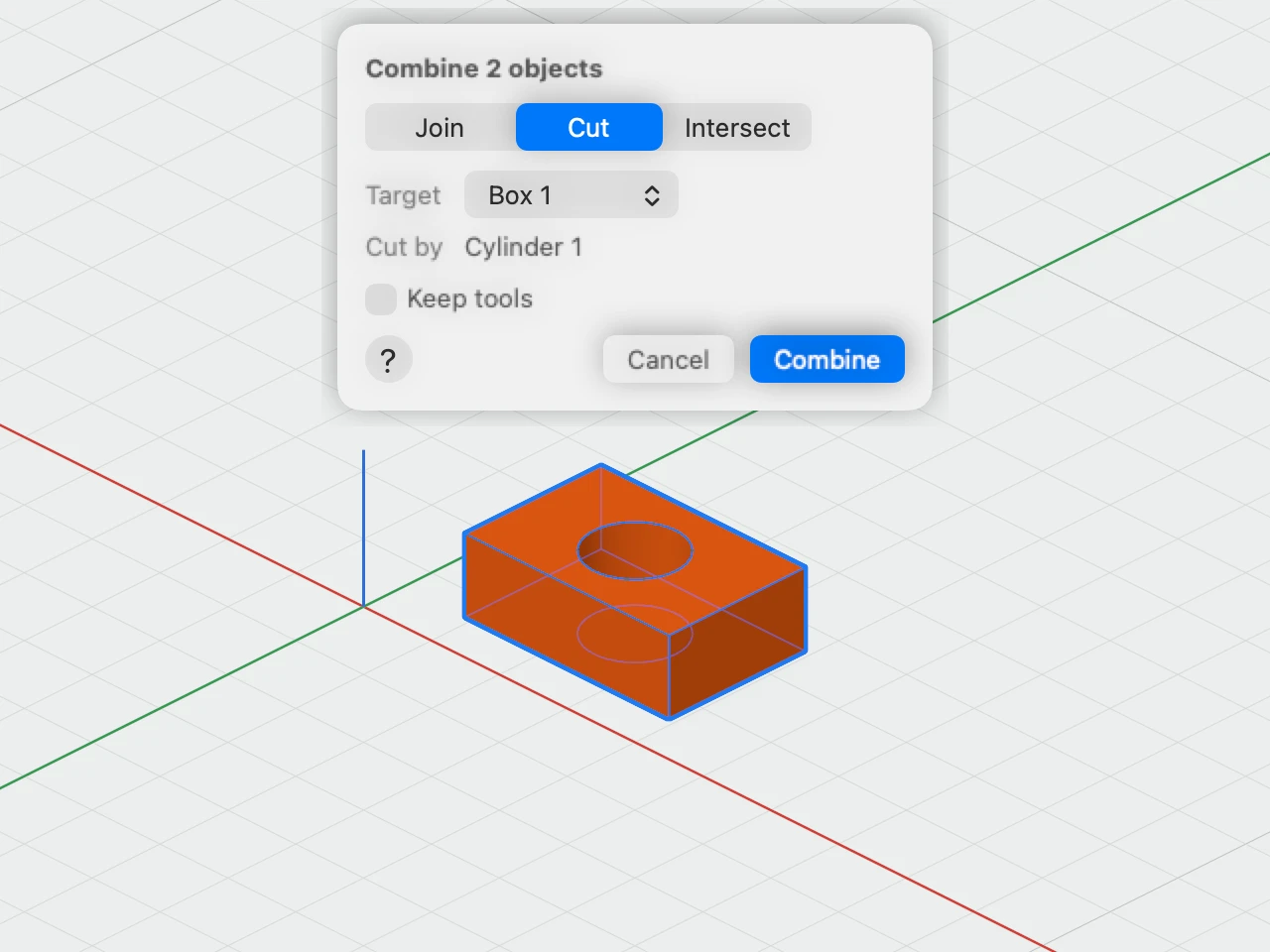
The panel opens on the operation you used last, Cut at first. Cancel (Esc) leaves everything as it was.
Join, Cut and Intersect
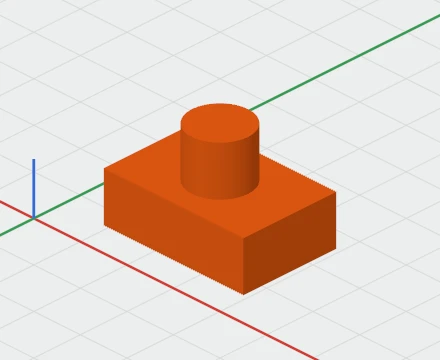
- Join makes one solid of them all.
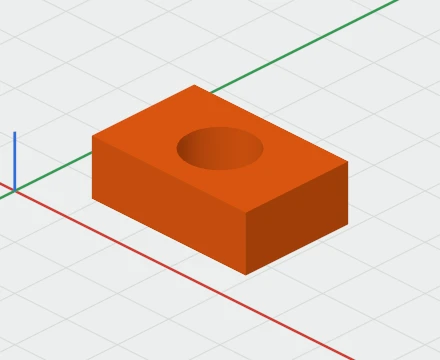
- Cut takes the others, the tools, away from the target.
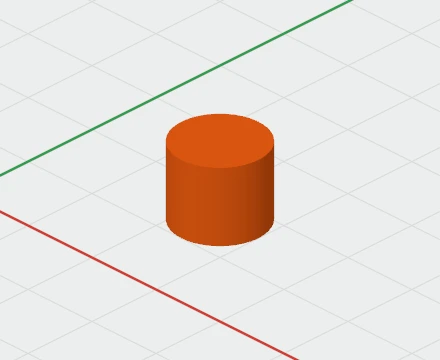
- Intersect keeps only the space the target and every tool share.
The result is named after what made it, such as "Box 1 − Cylinder 1", until you rename it. Faces cut by a tool take the target's colour, so they look like part of it.
Changing it later
Select the combined object and its inspector has a Combine section: switch the operation or the target there, and the list of tools says what it's joined with or cut by. In the object list, it folds open to show the target and the tools.
Break Apart (⇧⌘K), in the inspector, the Object menu or Modify ▾, puts the target and the tools back as separate objects, exactly as they were.