Each design opens in a window of its own, with five parts: the toolbar along the top, the object list on the left, the 3D view in the middle, the inspector on the right, and the status line along the bottom of the 3D view.
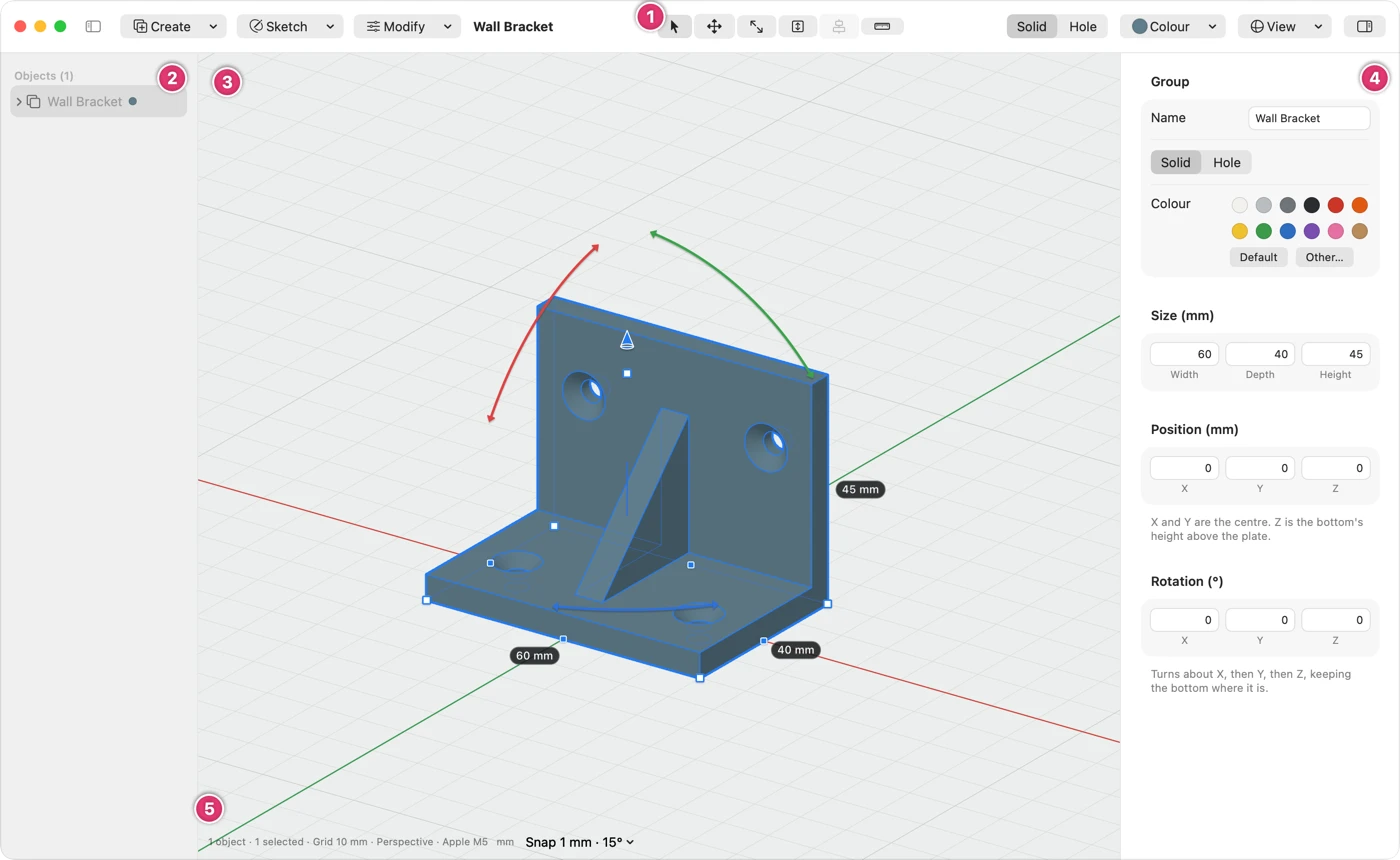
1. The toolbar
On the left, three menus for making things:

- Create ▾ adds a shape: a box, cylinder, sphere or cone, a hole, or a ready-made part such as a bolt or a gear. It also joins two pieces with a loft or a route.
- Sketch ▾ draws a flat shape, on the build plate or any face, to make into a solid.
- Modify ▾ changes what's selected: Combine, Group, Mirror and patterns, Drop and Lay Flat, Align and Distribute, Fillet and Chamfer, Shell, and Add Meshing Gear.
In the middle, the tools. The one that's on is highlighted, and pointing at one shows its name and key:
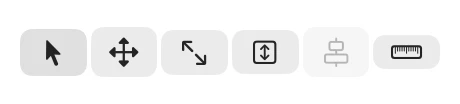
- Select, the usual tool: click shapes, then drag, resize and turn them with their handles.
- Move (M) slides the selection along X, Y or Z with arrows.
- Scale resizes with the handles, or by a factor you type.
- Push/Pull (P) drags a flat face in or out.
- Align (L) lines objects up with markers. It needs two or more selected.
- Measure (R) measures distances, gaps, angles and diameters.
On the right, buttons for what's selected and for the view:

- Solid and Hole: a hole cuts away whatever it's grouped with.
- Colour colours the selection.
- View ▾ turns the view to Home, Top, Front or Right, zooms to fit, and switches between perspective and orthographic. See Moving Around the View.
- shows or hides the inspector.
A window too narrow for the whole toolbar puts what doesn't fit in a menu at its right-hand end.
2. The object list
Every object in the design, by name. Click one to select it, in the list and in the 3D view at once; ⌘-click or ⇧-click to select more.
- Double-click a name, or press Return, to rename it.
- The eye hides an object, and the padlock locks it so it can't be changed. They appear when you point at a row, and stay while they're on.
- A group opens to list its members, greyed: clicking one selects the whole group, as clicking it in the 3D view does.
- Right-click a row to rename, hide or lock it.
- at the top left shows or hides the list.
3. The 3D view
Where you build. The grid is the build plate, its lines in your units, with the X axis in red and the Y axis in green. Shapes are added, moved, resized and turned here, and the tools draw their handles and bars here too.
To turn the view round, slide it or zoom, see Moving Around the View. To add a shape, see Placing Shapes.
4. The inspector
Exact numbers for what's selected: its name, Solid or Hole, its colour, and its size, position and rotation, then sections for anything more it has, such as a thread, a gear's teeth or a route's bend.
- Type any value, in any unit, and press Return: 25, 1.5 in, even 20 + 5. Esc puts it back.
- ↑ and ↓ nudge a value, and with ⇧ by a bigger step.
- Position is the selection's middle in X and Y, and in Z the height of its bottom above the plate.
- ⌃⌘I, or in the toolbar, shows or hides it.
5. The status line
Along the bottom of the 3D view: how many objects there are and how many are selected, the grid's spacing, perspective or orthographic, and the Mac's graphics chip. Then two menus:
- Units (mm here): this design's own units, or the default from Settings.
- Snap (1 mm · 15° here): how far drags and resizes move at a time, and the angle turns snap to.
While slow shapes are being worked out, Working… shows there too. You can carry on meanwhile: the view catches up when they're ready.