A pattern makes copies of the selection in a row, a grid or round a circle, and a mirror makes its mirror image. The copies stay linked to the original: change it and every copy follows.
Select what to copy, then choose Modify ▾ › Mirror…, Linear Pattern… or Circular Pattern… in the toolbar. They're also in the Object menu and the right-click menu. A bar at the top of the 3D view has the settings, the copies show see-through as you change them, and Apply makes them.
Linear patterns
Copies in a row, or in rows for a grid.
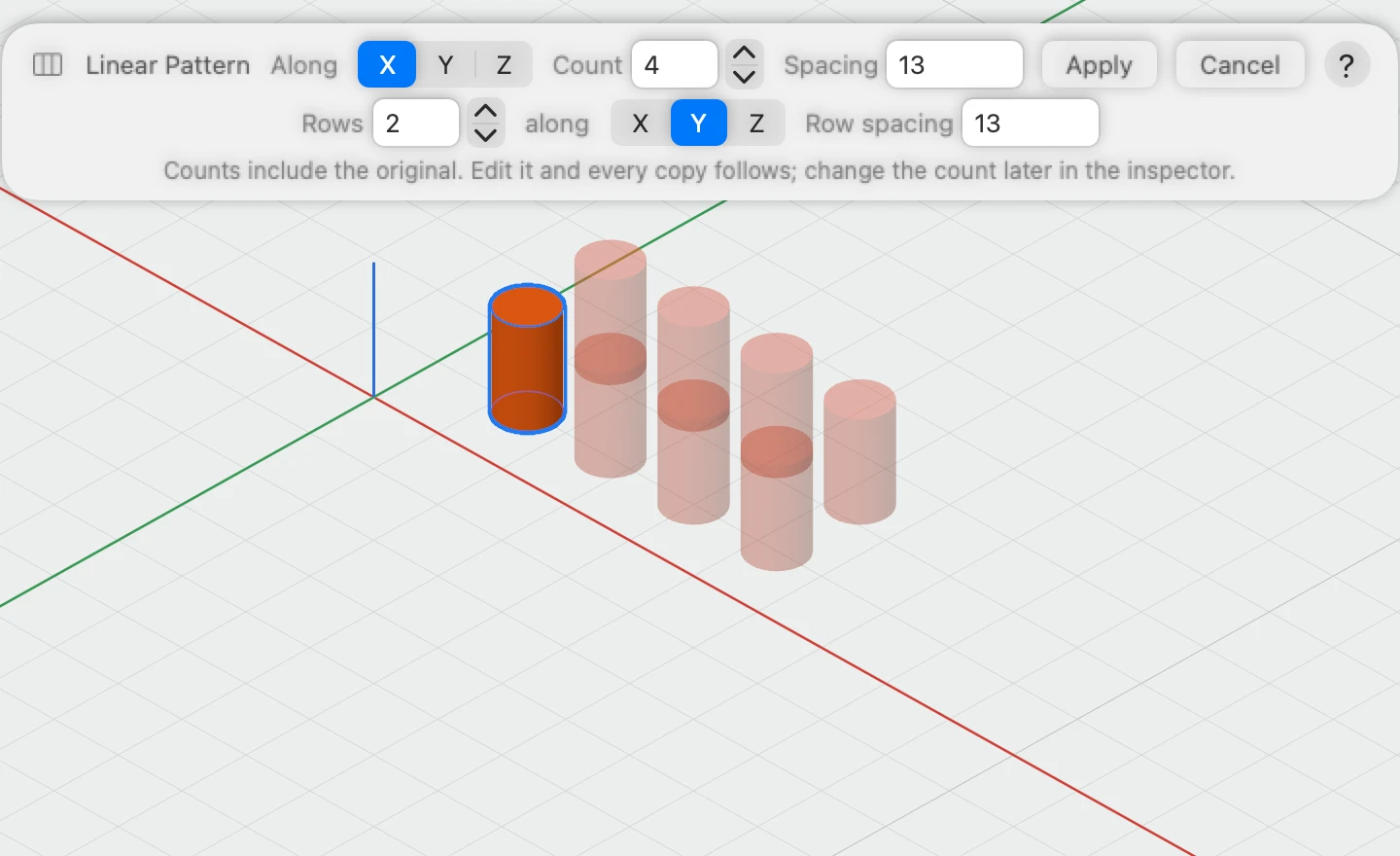
- Along: the workplane's X, Y or Z.
- Count: how many, counting the original.
- Spacing: from each copy to the next. It starts with a 5 mm gap between them; below 0 goes the other way.
- Rows: more than one makes a grid, with its own direction and Row spacing.
Circular patterns
Copies round a circle, such as the bolt holes on a flange.
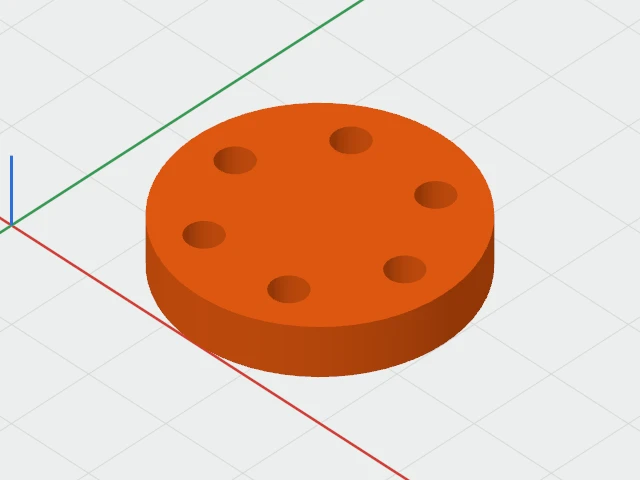
- Around: Z, through the middle of the selection, or click a round face, such as a cylinder's or a round hole's, to go round its axis.
- Count: how many, counting the original; 6 to start with.
- Angle: how far round they go. 360° spaces them evenly round the whole circle; less puts the last one at the end of the arc.
- Turn copies: on, each copy turns as it goes round; off, they all face the same way.
Mirror
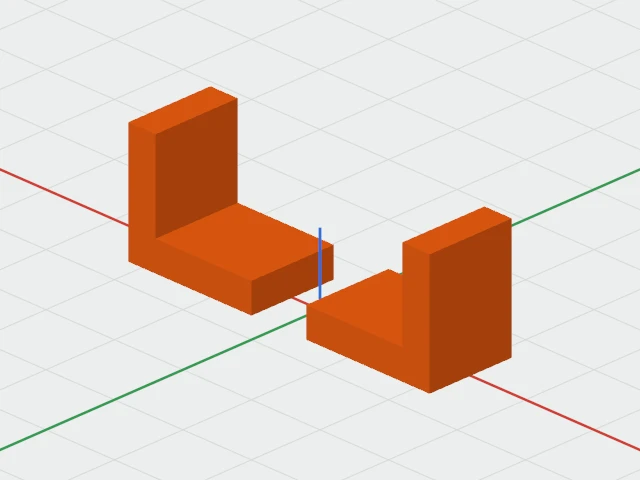
- Across: the workplane's X, Y or Z, through the middle of the selection, or click a face to mirror across it.
- Keep original: on, adds a mirror image beside it; off, flips the selection in place.
Afterwards
A pattern or mirror is one object, named after what it holds, such as "Box 1 × 3", "Box 1 × 6 Round" or "Box 1 and Mirror". Its inspector section changes the count, spacing, angle and the rest later.
- Double-click it to edit the original inside it; every copy follows.
- Break Apart (⇧⌘K), in the inspector or the Object menu, makes each copy a separate object.
A pattern can have up to 500 copies.