A loft joins a flat face on one piece to a flat face on another, blending one outline into the other: a round peg into a square block, or a small end into a big one.
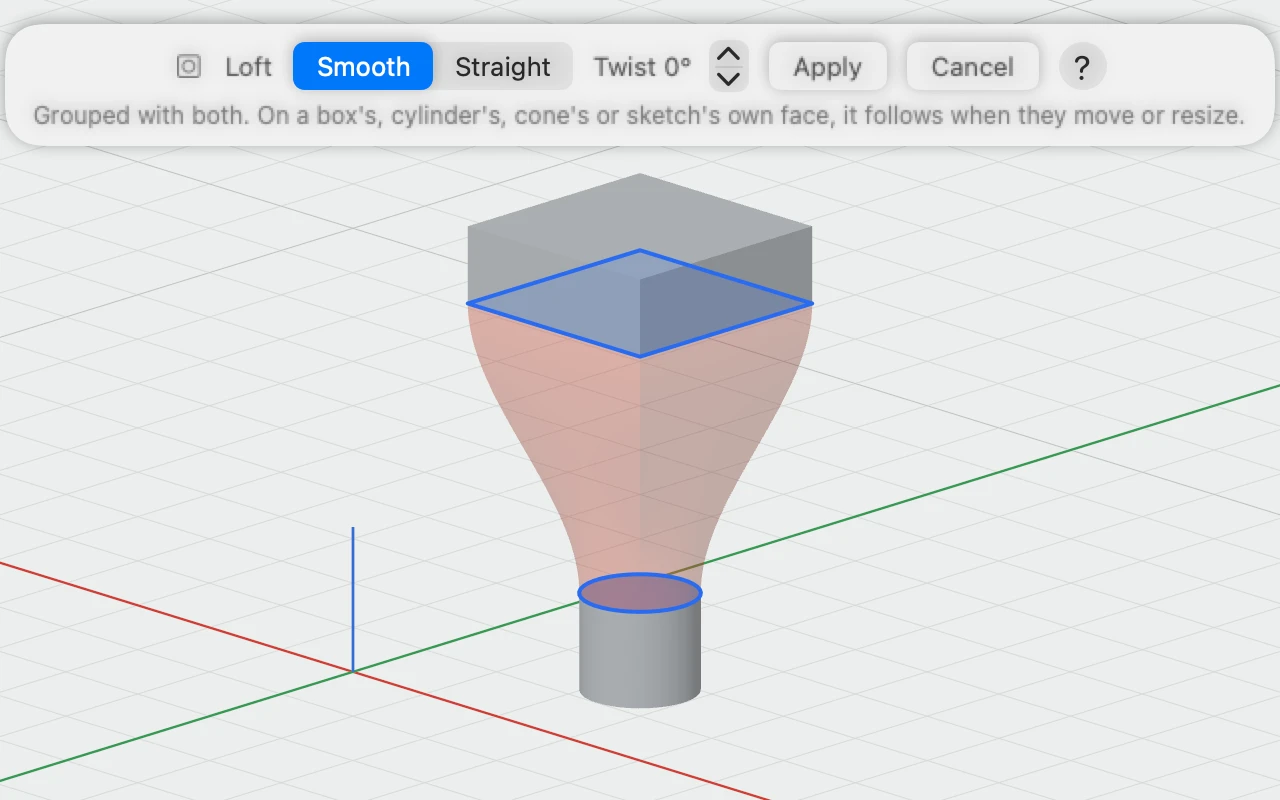
Making a loft
- Choose Create ▾ › Join › Loft… in the toolbar. It's also in the Create menu in the menu bar, and you can right-click a face and choose Loft from Here, which picks that face for you.
- Click the flat face to loft from. It lights up, and the bar asks for the second.
- Click the flat face to loft to. A see-through preview shows the loft.
- Choose Smooth or Straight sides, and a Twist if you want one, then click Apply.
The loft is grouped with both pieces as one object, named "Loft 1", "Loft 2" and so on, and the group is selected. One ⌘Z undoes the whole thing, and Esc or Cancel stops without making anything.
Its sides
- Smooth sides leave each face straight out from it and curve round to meet, with no crease at either end. New lofts are smooth.
- Straight sides run straight across from one face to the other.
- Twist turns where the two outlines' points meet, 15° a step, so the sides twist or untwist.
It follows its faces
An end on a box's, cylinder's, cone's or sketch's own face follows that face: move or resize the piece and the loft changes to suit. An end on any other face, such as one of a combined object's, keeps the outline it had.
Holes carry through
A hollow end stays hollow: loft a hollow cylinder to a hollow box and the loft is a hollow tube between them. When the two faces have different numbers of holes, the loft is solid between them, and the bar says so.
Loft or Route?
A loft blends one outline into the other, so a loft round a bend gets pinched in the middle. To keep a pipe's shape round a bend, use a route instead.
Changing it later
Double-click the group to edit inside it, then click the loft. The inspector's Loft section has its sides and twist, and says what each end joins.