A sketch is a flat drawing of lines, rectangles, circles and curves, on the plate or on any face, that becomes a solid. Use one for shapes Create hasn't got, such as a bracket's outline, a custom plate or a knob's profile.
Drawing a sketch
- Choose a tool from Sketch ▾ in the toolbar, or from the Sketch menu in the menu bar.
- Click the plate, or any face, to draw on. The view turns to look straight at it, and the grid moves onto it.
- Draw, with any of the tools below.
- Click Finish, or press Return. The closed shapes become one object, "Sketch 1", extruded 10 mm out of the plane, and the view turns back.
Cancel stops without making anything. The bar's Make chooses whether Finish extrudes the sketch or revolves it: see Extrude and Revolve.
The tools
Choose a tool in the bar while sketching, or press its key.
- Line (L): click point to point. Click the first point to close the shape; double-click or press Esc to stop.
- Rectangle (R): click two opposite corners, or drag from one to the other.
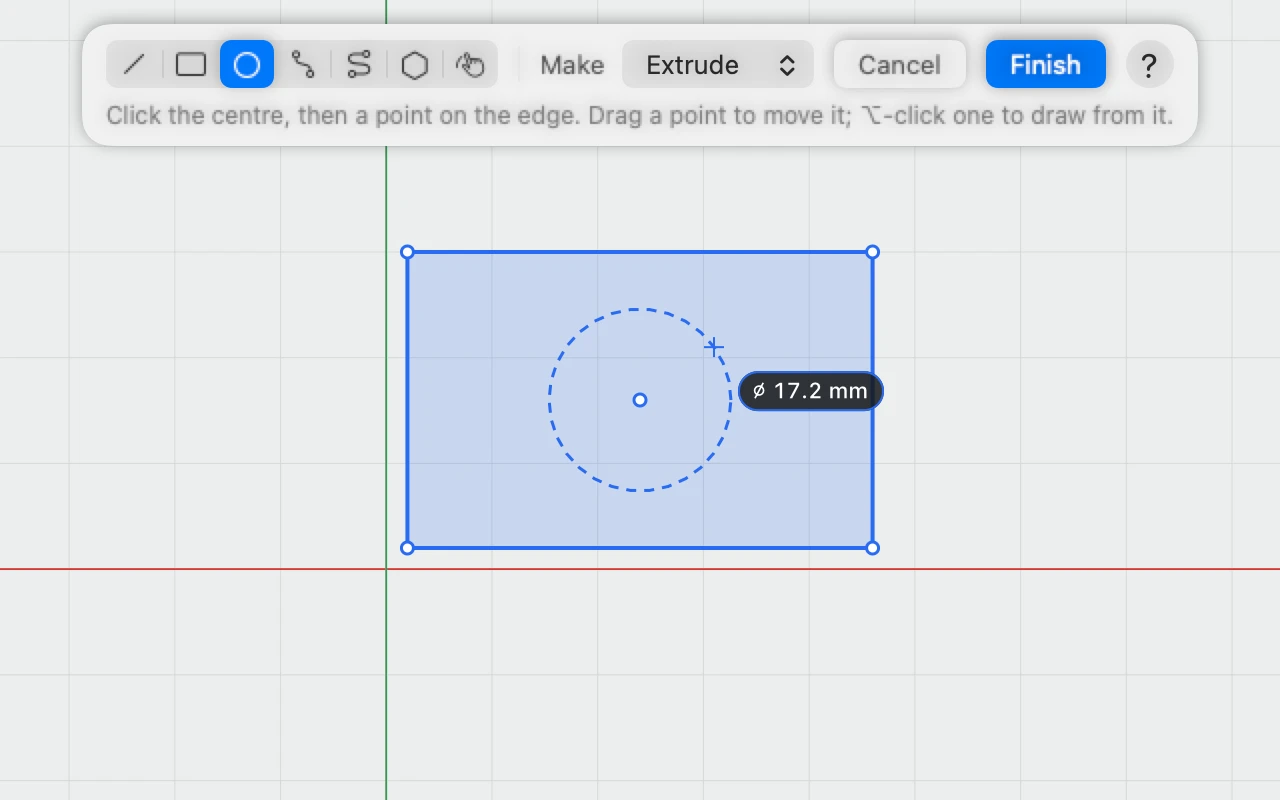
- Circle (C): click the centre, then a point on the edge.
- Arc (A): click where it starts and ends, then a point it passes through.
- Curve (S): click the points a smooth curve passes through. Click the first to close it; double-click or press Esc to stop.
- Polygon (P): click the centre, then a corner. The bar sets how many sides, 6 to start with.
- Freehand (F): drag to draw. End near where you started to close it. The stroke is smoothed and tidied.
Lines, rectangles, circles and polygons can be dragged out as well as clicked. A label shows the size as you go, such as a circle's diameter.
Snapping
A point snaps to a point already drawn when the pointer comes near it, so shapes join up. Otherwise it snaps to the grid. Hold ⌘ to draw freely.
Shapes inside shapes
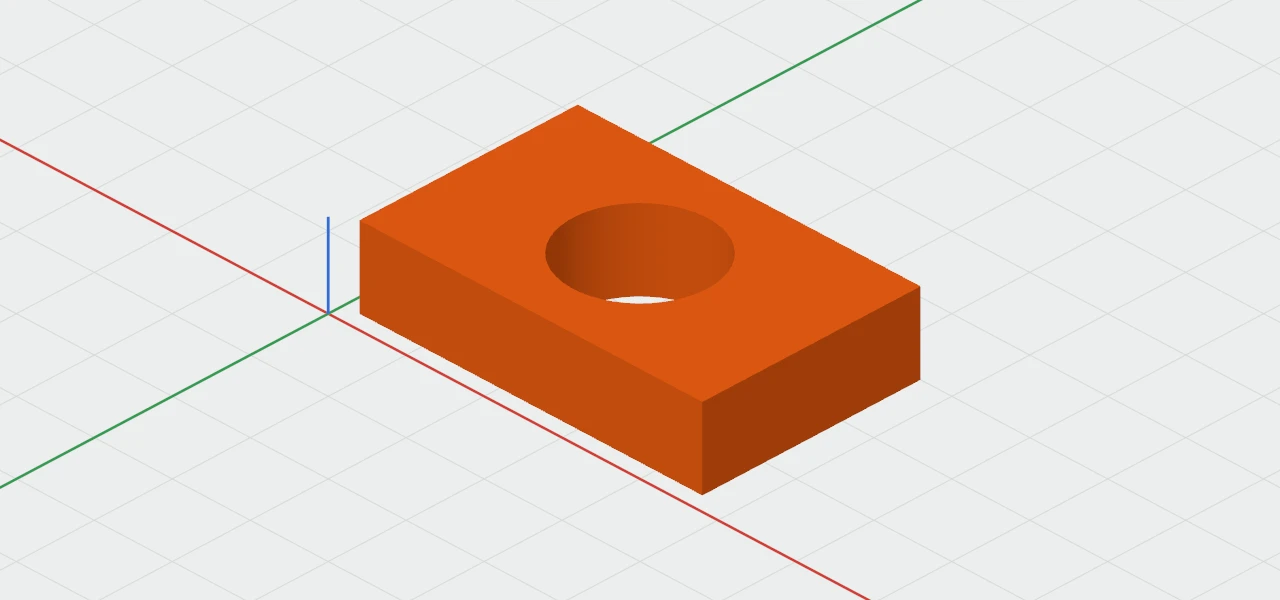
A closed shape drawn inside another is cut out of it, like the circle in the rectangle above. A shape inside that hole is solid again. Only closed shapes make a solid: with none, Finish says so.
Undo while sketching
Everything you draw is its own step: ⌘Z takes the last one back, and ⌫ removes the last thing drawn. Once you finish, the whole sketch is one undo step, "Sketch".
Sketching on a face
Click a face instead of the plate and the sketch is drawn on that face's plane. The sketch keeps the plane, not the face: if the object moves later, the sketch stays where it was drawn.